# Catfish Cloud
# Collaboration Center
Now fully supports Revit 2021–2027 all versions. Clear permissions, cloud sync, secure and stable — making cross-discipline and cross-team project collaboration more efficient and smooth.
# Configure Server

Before using the cloud, configure the necessary server files. This only needs to be done the first time.
# VPN

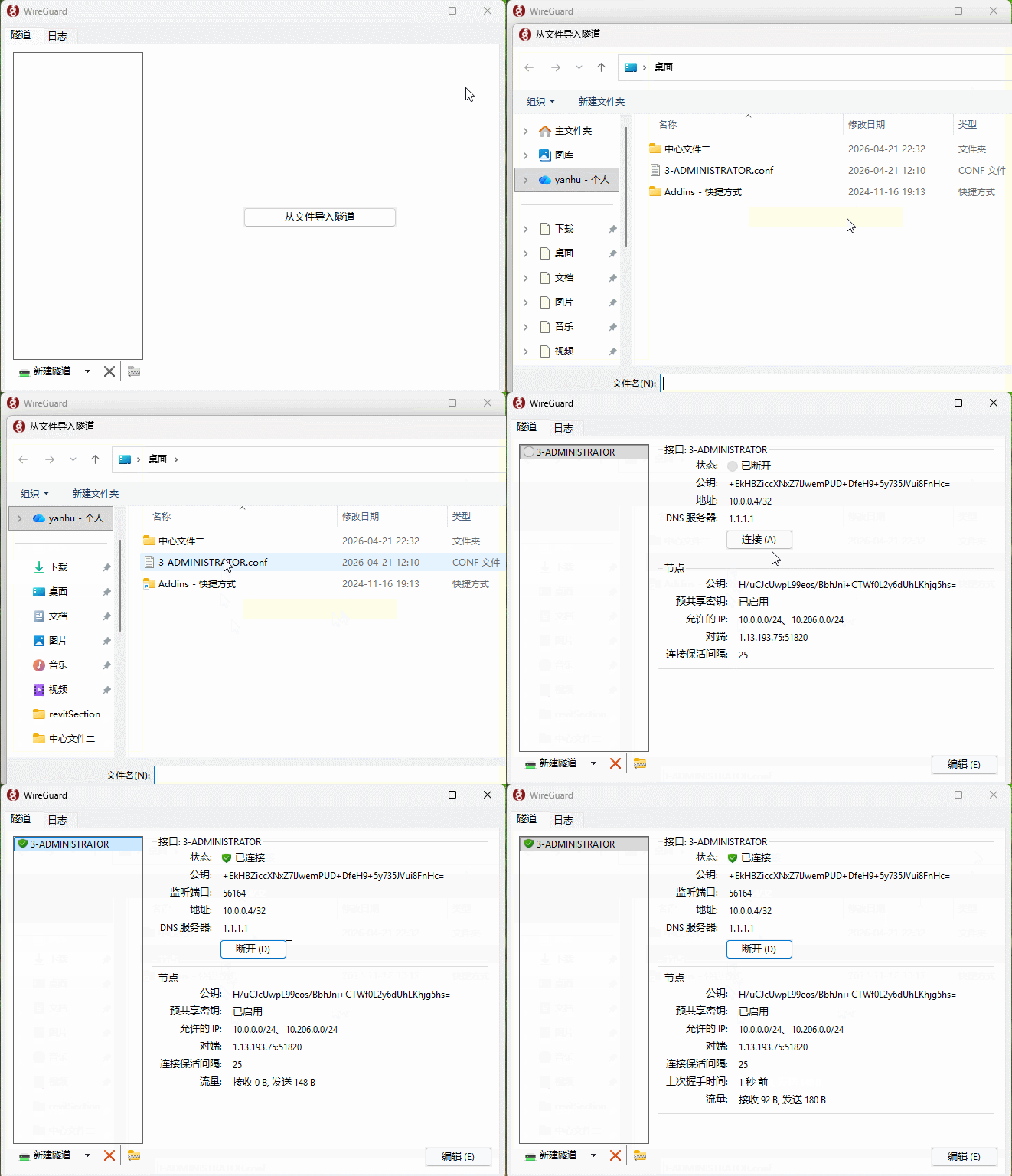

The file will be generated on the desktop in the format 3-ADMINISTRATOR.conf. The file is valid for 30 days, consistent with the plugin. After activating the plugin, please generate the VPN key and complete the connection first. After that, both Revit native features and Catfish Cloud features can be used normally.
# Network Detection & Optimization


During network detection, first open Revit as administrator and complete network optimization, then connect to VPN for detection and view results.
# Create Central File

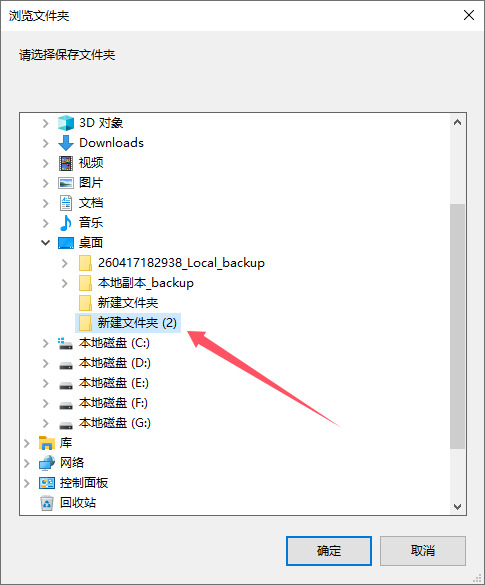
The save path here is the network path for the Catfish Cloud central file. The system will save it as a TXT file.
Please keep this file safe — it will be needed when creating local copies later. You can also distribute this file to team members who need to collaborate.
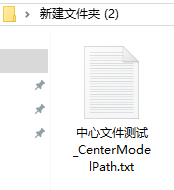
After the local copy is created, you can close the current document. Use the "Create Local Copy" command to generate local files for editing.
Once the central file is created, do not perform any operations on it.
# Create Local Copy

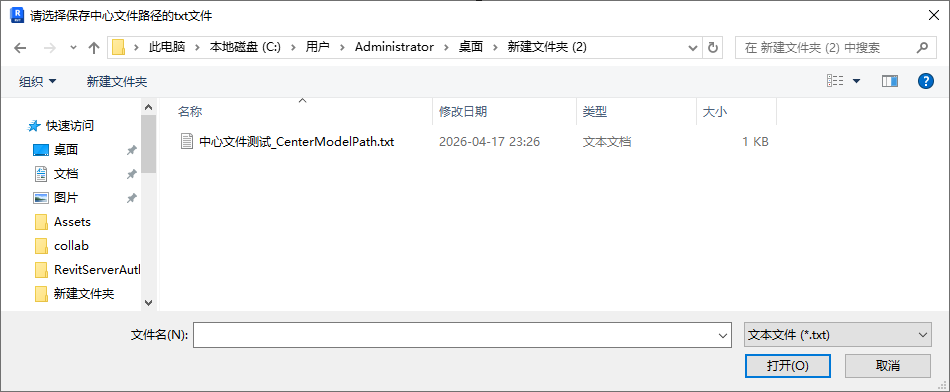
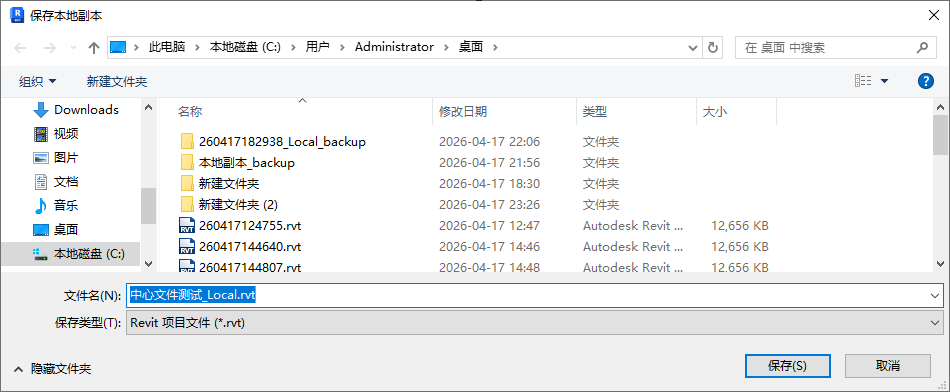
Find the TXT file saved when creating the central file, and click to open it.
In the second popup window, select and set the local file save path.
The software will automatically open the local copy at that path. You can edit directly and sync later.
# Sync

During sync, the system will automatically clear and relinquish all component permission ownership and lock states to ensure local and cloud file content are fully consistent.
Watch tutorial video on Bilibili → Catfish Cloud 1 (opens new window)
Watch tutorial video on Bilibili → Catfish Cloud 2 (opens new window)