# Family Library
Library Categories:
Watch tutorial video on Bilibili → Family Library Categories (opens new window)
- Soft Furnishing Category
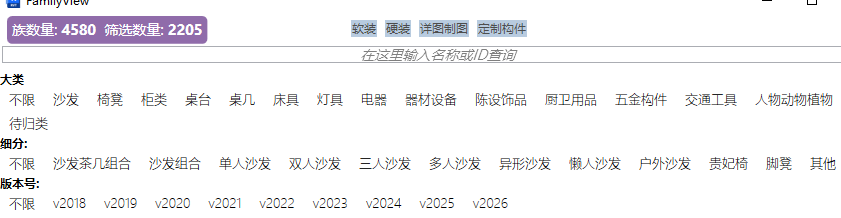
Categorized by soft furnishing types. Subcategories switch with the main category.
- Hard Furnishing Category
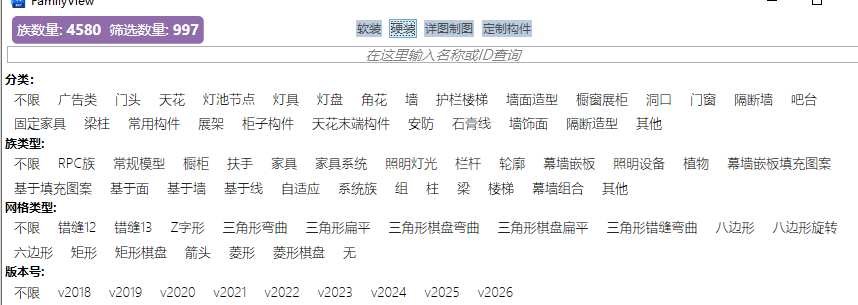
Mainly categorized by construction location, family type, etc. — more aligned with interior design thinking.
- Detail Drawing Category
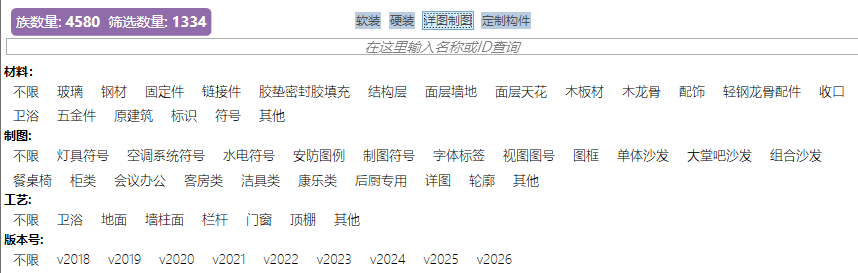
Provides various detail families for drawing detail nodes, common process nodes, and common drawing symbols.
- Custom Component Category
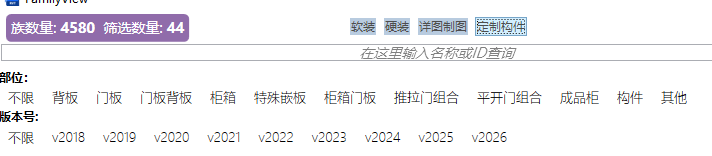
Organizes custom product categories based on curtain wall design principles.
# Get Render Path

Extract the render path and add it to your project's render paths to prevent texture path loss for families with built-in textures from the library.
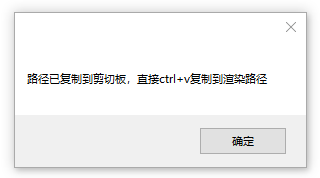
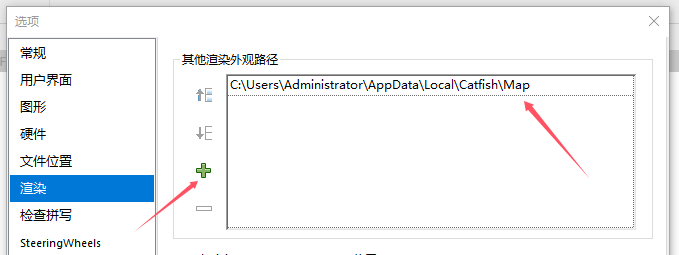
If you can't copy the path, solution: reinstall the US English input method.
# Custom Family Cloud Upload

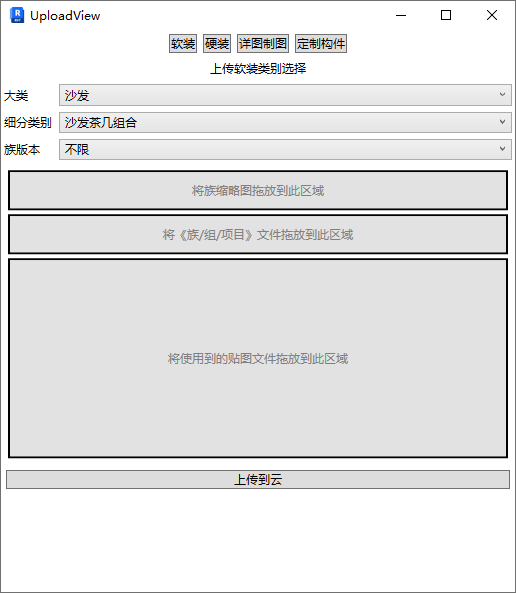
Select the appropriate category from the library classification, then drag and drop the files to upload.
During upload, both the thumbnail and family file must be present. Textures are optional and support multiple textures.
Watch tutorial video on Bilibili → Custom Family Cloud Upload (opens new window)
# Local Family Library
Watch tutorial video on Bilibili → Local Family Library (opens new window)
# Cloud Family Library

# Search
Watch tutorial video on Bilibili → Family Filtering Methods (opens new window)
Search for families by name and ID.
Browse by library directory structure categories.
Version filtering principle: Filter families that can be used in the current version. For example, selecting v2023 means families compatible with Revit 2023, which also includes lower version families.
"Private" at the bottom shows user-uploaded family files. "Favorites" shows families the user has bookmarked.
# Usage & Placement
Downloaded families are cached locally — no need to download again for subsequent use. In the project, you can drag and drop from the library multiple times, replacing the project browser as a visual family browser.
To replace family types in the project, select the family to replace, find the same type in the library, and left-click to replace. Ensure the replacement family is already downloaded.
Watch tutorial video on Bilibili → Quick Family Type Replacement (opens new window)
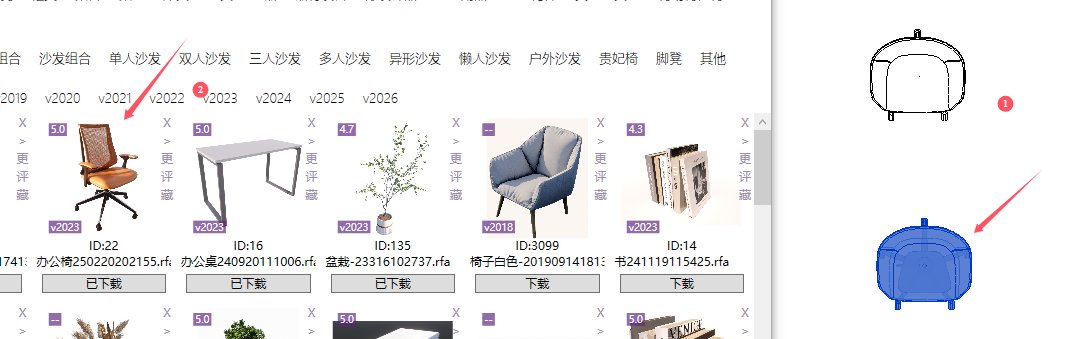

Placement methods during drag-and-drop:
Standard families are placed by clicking in the current view.
Face-based families require a work plane before placement.
Line-based families require two clicks to place.
Project groups will open a new document by default during placement. Simply copy from the new document to use.
Models that cannot exist independently will be directly referenced into the project during drag-and-drop. Select when needed. For example: profile family loading.
Watch tutorial video on Bilibili → Various Family Loading Methods (opens new window)
# Family Editing
Watch tutorial video on Bilibili → Cloud Library Family Operations (opens new window)
View
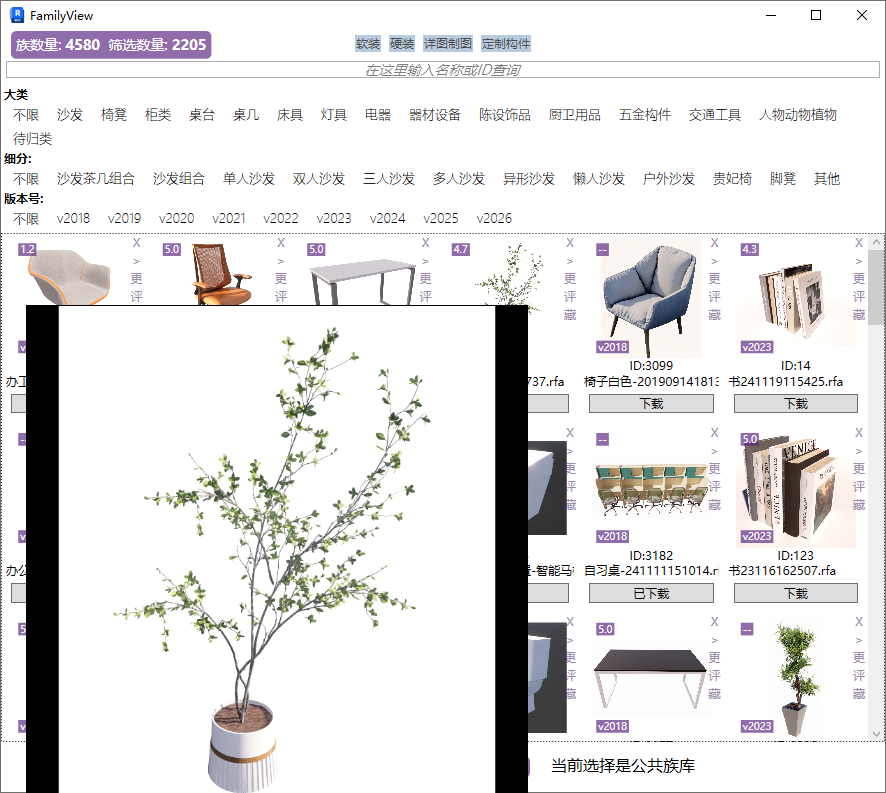
Right-click on the thumbnail to view the large image.
Delete
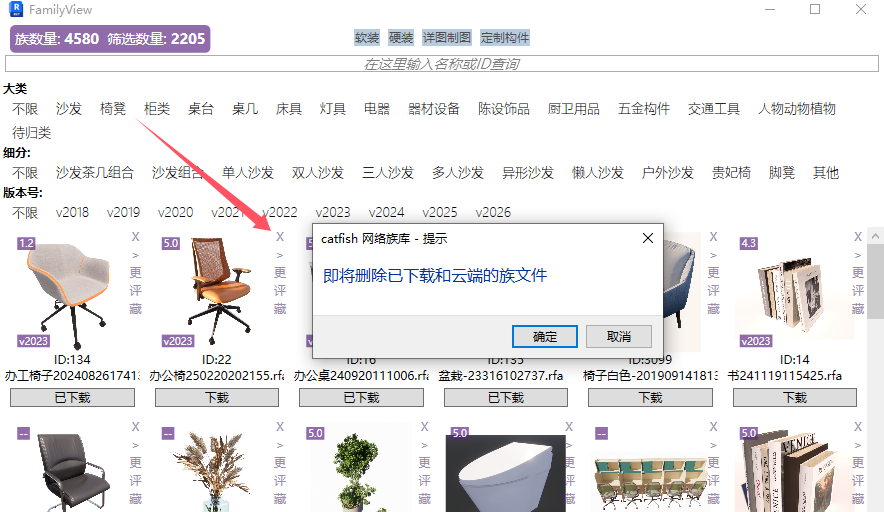
Deleting removes both the cloud and locally downloaded copies. Only your own uploaded families can be deleted.
Move
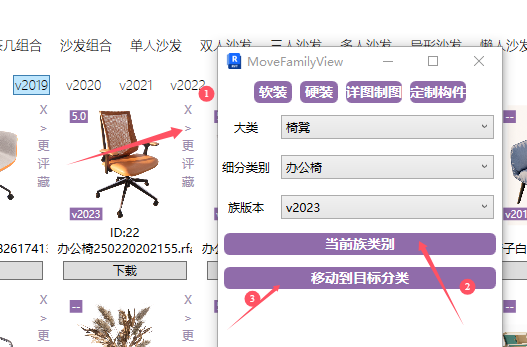
Re-categorize your families. Select the target category and move directly.
Update
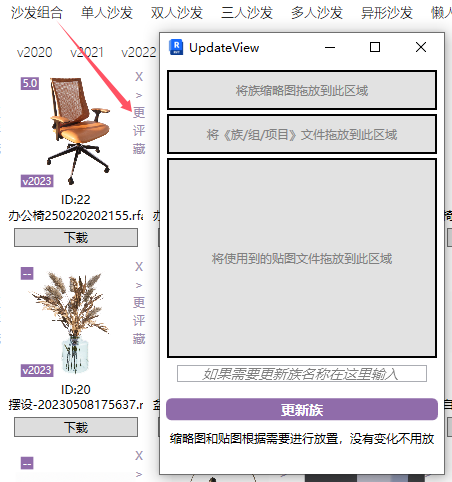
Similar to custom upload but without restrictions. Fill in only the elements you want to update.
You can upgrade and update your own families. After updating, click re-download to overwrite the cached version.
Rate
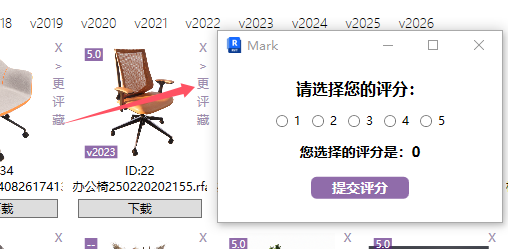
Users can rate families they've used. The plugin sorts by rating and download count by default, making quality families more visible.
Favorite
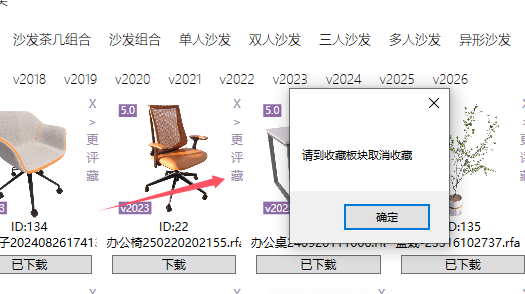
Bookmark your favorite families. They will appear in the Favorites page, still organized by the library's own categories.

# HD Texture Library

Operation is similar to the family library.
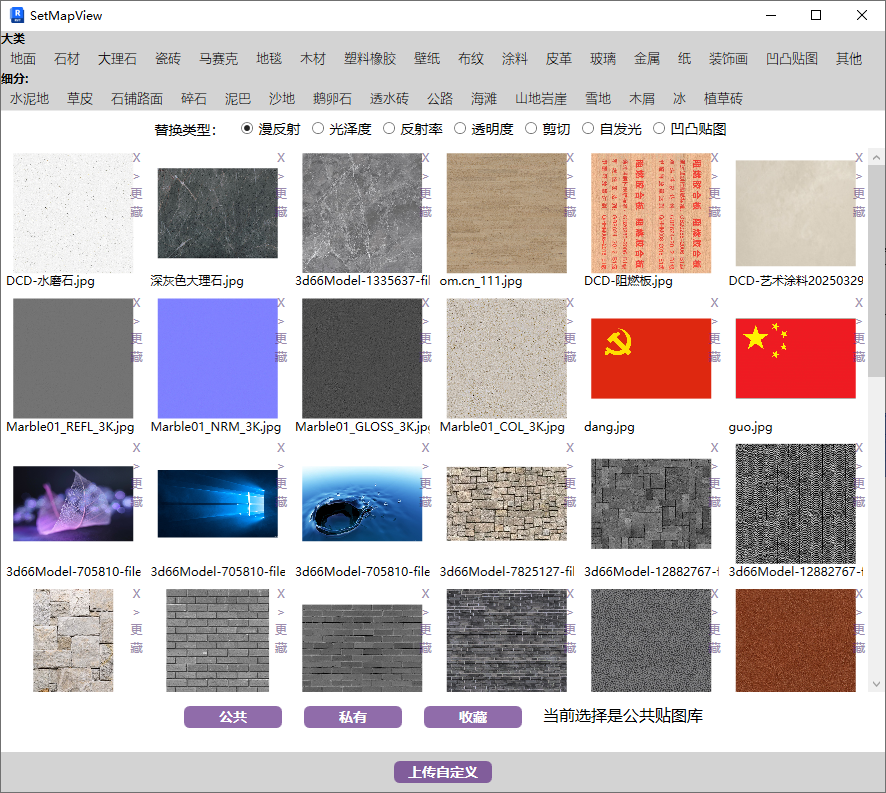
Drag and drop textures directly onto component surfaces to replace material textures.
Pay attention to the replacement type selection. The material must be a default material — not Revit-specific types like wood, stone, etc.
No response after replacement: If some texture replacements don't respond after a previous replacement, rename the last replaced texture, then manually replace the default material with any other material in the material editor, and try the replacement again. This issue is rare — if encountered, report the problematic texture name in the group.
Watch tutorial video on Bilibili → HD Texture Library (opens new window)
# Clear Cache

The library cache is stored on the C drive. If C drive space is insufficient, you can clear the cache. Generally not recommended — more cache means smoother operation.
# About

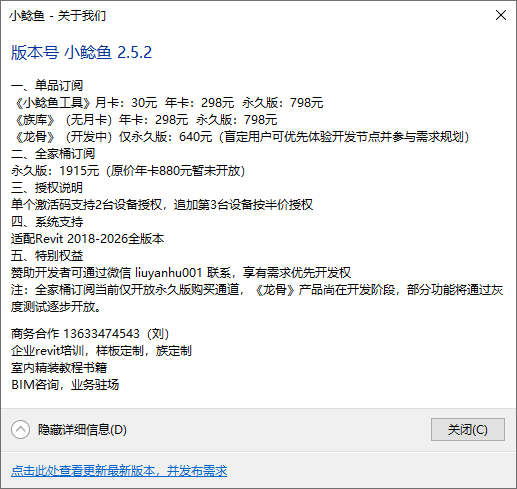
# Activation

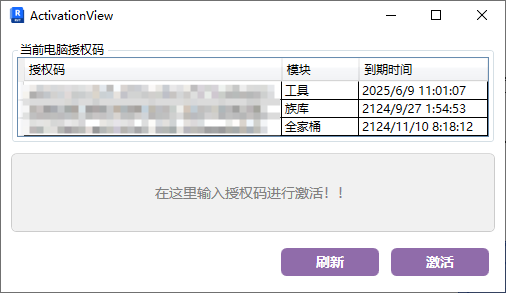
The authorization code shown above is the record for the current computer. To activate, enter the authorization code in the field below.
# Logout

Log out the user. The software will prompt for login again when restarted.