# Lighting
# Place Light Strips

Pick model edge lines to place point light sources. Generated models are grouped for easy modification and deletion.
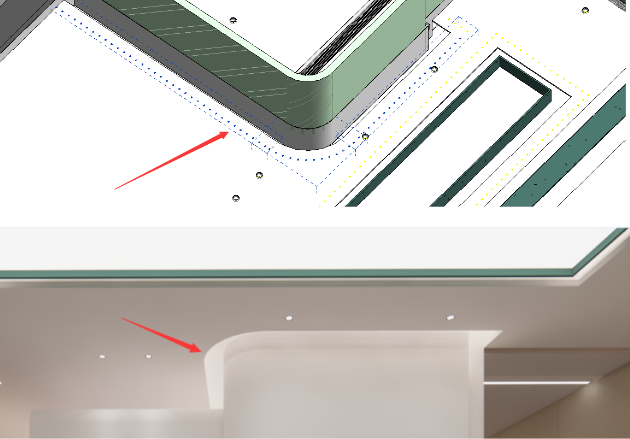
Light strips generated using point light sources can produce realistic lighting effects in renders.
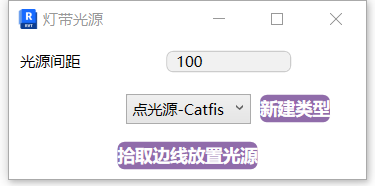
- Parameter Details
Light Spacing: The distance between generated light sources.
Type: The default point light source type is automatically loaded when the function starts. You can create new types directly if you need multiple light source types.
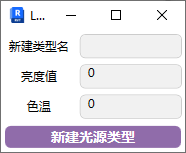
Set the parameters and light source type, click "Pick Edge to Place Light Source", then pick the model edge lines in the model to generate.
If you can't see the generated light sources in the scene, enable light source visibility in the view visibility settings.
Make sure to consider the line-of-sight occlusion effect of the light source model when placing. Avoid clipping through models. If the model space is very small, adjust the symbol size of the light source model.
Watch tutorial video on Bilibili → Place Light Strips (opens new window)
# Photometric Web
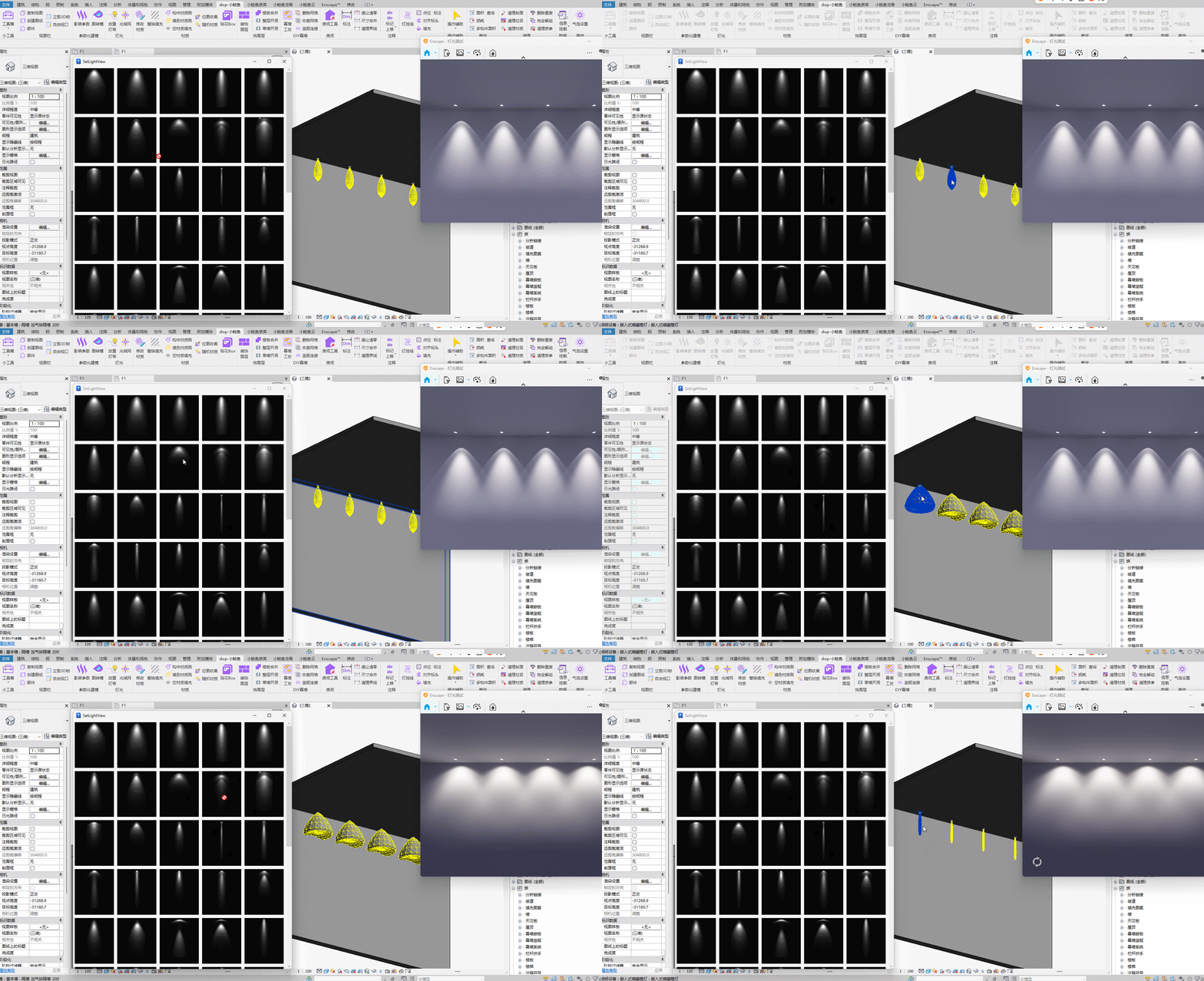
Drag-and-drop operation to quickly replace photometric web files for lighting equipment in the project.
Watch tutorial video on Bilibili → Photometric Web (opens new window)
# Light Source Visibility
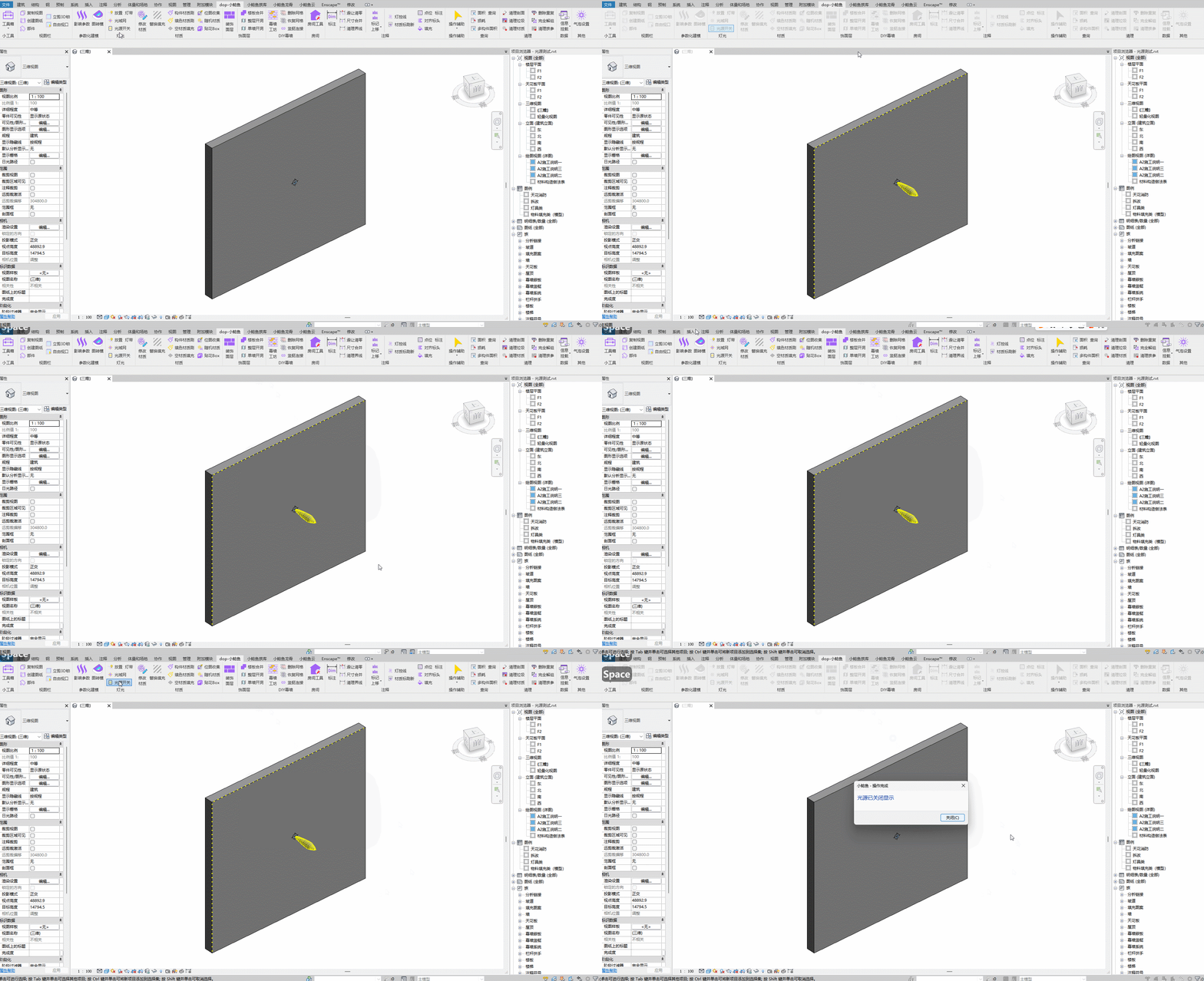
One-click toggle to show light sources in the view.
Watch tutorial video on Bilibili → Light Source Visibility (opens new window)