# Operation Assistants
# Operation Assistants

Help quickly select the components you need in a project.
Watch tutorial video on Bilibili → Selection Assistants (opens new window)
# Category Selection
Based on the category of the picked element, selection only picks elements of the corresponding category. Recommended to set a shortcut key.
Updated: You can box-select multiple times for needed elements. Press Esc to exit and get the filtered elements.
# Name Selection
Based on the name of the picked element, selection only picks elements with the same name. Recommended to set a shortcut key.
Updated: You can box-select multiple times for needed elements. Press Esc to exit and get the filtered elements.
# Family Name Selection
Based on the family name of the picked element, selection only picks elements with the same family name. Recommended to set a shortcut key. The family name here is the family's own name, not the family type name in the project.
Updated: You can box-select multiple times for needed elements. Press Esc to exit and get the filtered elements.
Watch tutorial video on Bilibili → Quick Equal Division (opens new window)
# Same-Name Equal Division
Equalize and arrange selected components with the same name. The principle is that the first and last remain fixed, and the middle is equally divided. Wall types are excluded — they are only divided between parallel walls.
Commonly used for quickly equalizing wall spacing when drawing floor plans.
# Multi-Category Equal Division
Equalize selected multi-category components. When linear elements (walls) are involved, they are divided based on parallel wall spacing.
# Center Align
Center-align component placement.
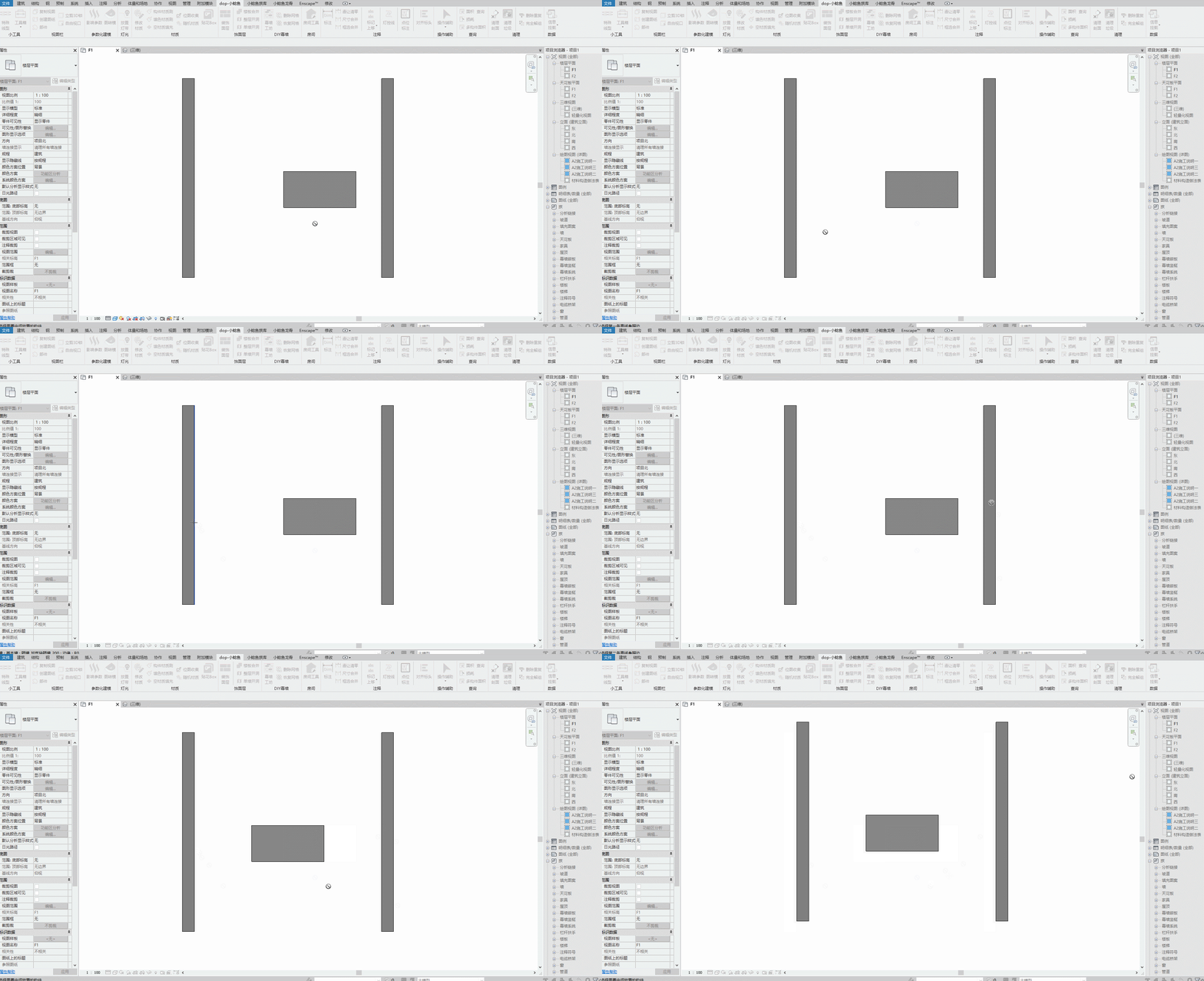
Steps: Select the main body to align → Select the first reference model edge → Select the second reference model edge
When you can't select a component's geometric edge, press Esc once to select a parallel geometric face as reference.
Watch tutorial video on Bilibili → Center Align (opens new window)
# Wall Cut
Cut walls at intersections by box-selecting.
Note: Ensure no wall-based families (like doors) are on the wall when using. Recommended for use during early project floor plan drawing.
Watch tutorial video on Bilibili → Wall Cut (opens new window)
# Master View ID
Add the master view ID to elevation views, section views, and other secondary views in the project.
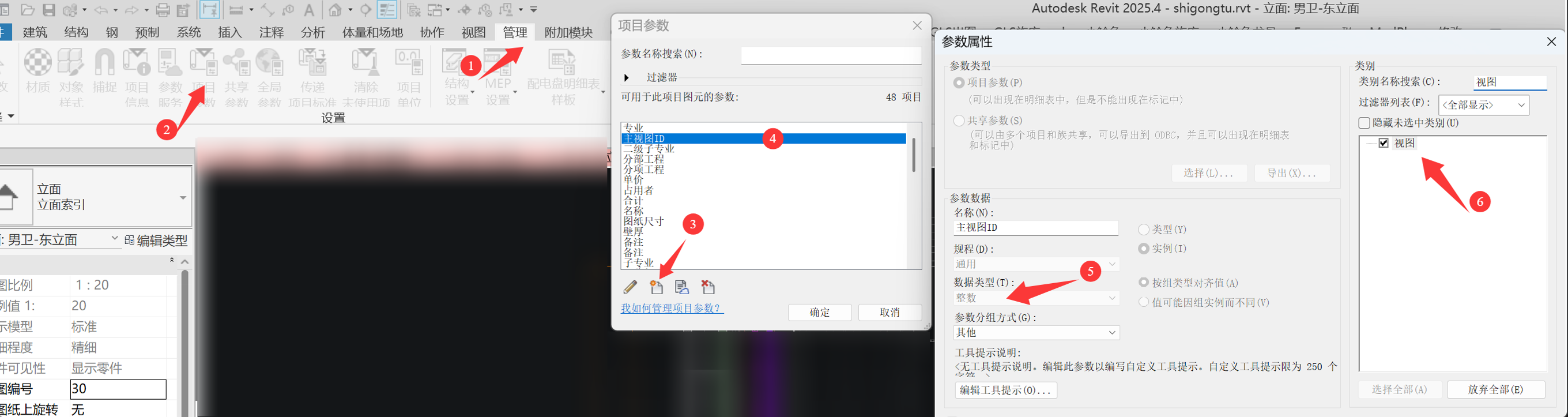
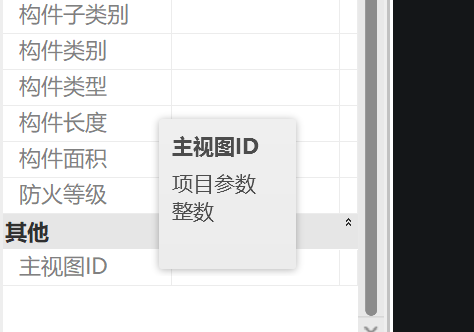
Add a project parameter "Master View ID" with integer type. Add the element to views.
# View Jump
Quickly jump from elevation, section, and other views to their master view.
Recommended to add a shortcut key.
Watch tutorial video on Bilibili → Master View ID / View Jump (opens new window)
← Annotations Query →