# Tools
# Toolbox

Tools with low usage frequency are merged into the toolbox to reduce interface clutter (that doesn't mean they're useless!)
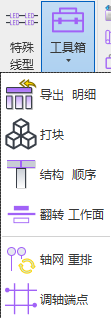
# Export Schedules

Export selected schedules. Multiple exports are automatically renamed with version numbers.
- Steps
- Select the schedules to export. Hold Ctrl to multi-select, Shift to select a range from the first to the last clicked item.
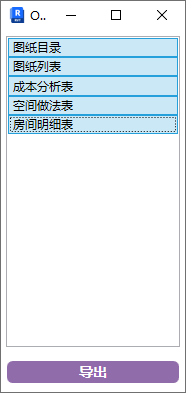
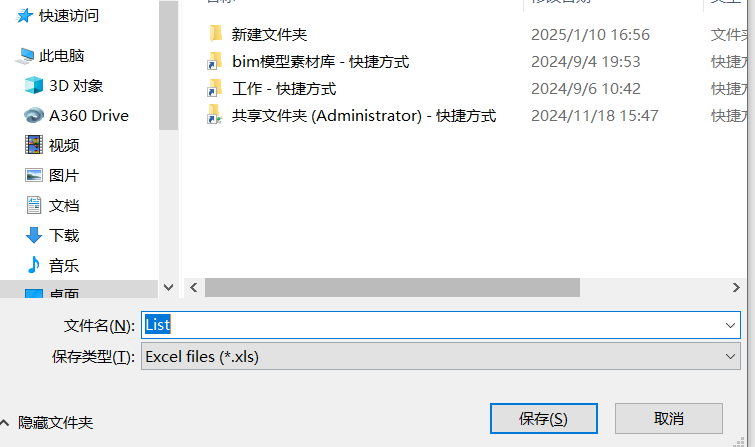
- Click Export, choose the save location in the dialog, and click Save.
Watch tutorial video on Bilibili → Export Schedules (opens new window)
# Merge Geometry

Merge combined models into a single geometric body.
- Parameter Details
The type in the window is the category after merging.
- Steps
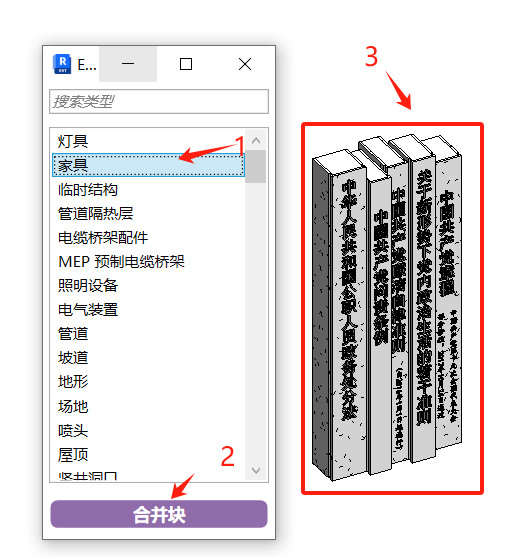
Select the type → click the Merge button in the ribbon → box-select the target models.
The generated model is placed at the original position by default. You can separate it by phase or use selection methods to view the merge result.
This feature is commonly used to package objects created from multiple elements into a single unit for individual statistics.
It can also be used for encrypting project files or families, retaining only geometric information and materials.
Watch tutorial video on Bilibili → Merge Geometry (opens new window)
# Family Conversion
Select elements in the project and convert them into custom families.
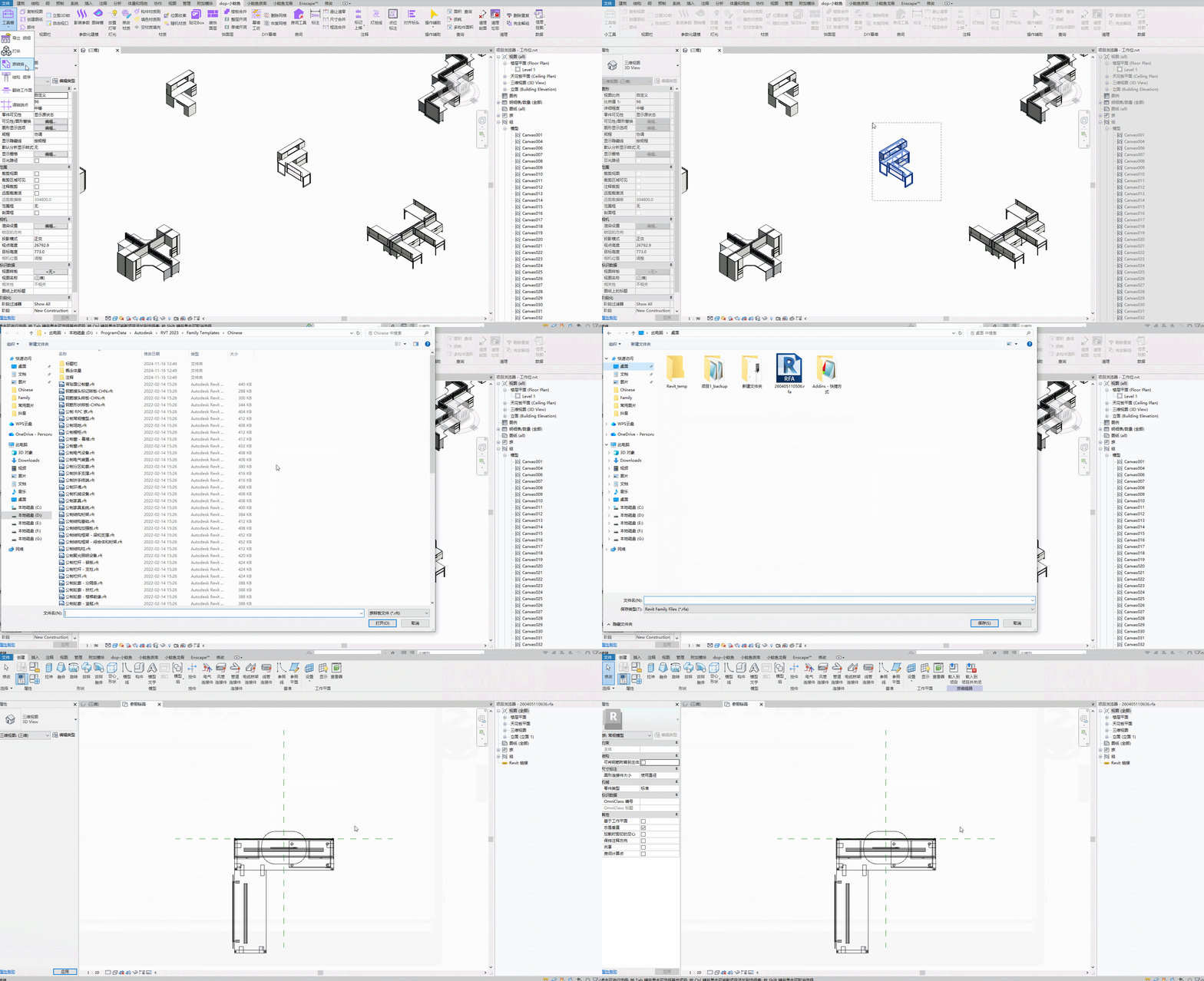
Steps: Box-select elements in the project to convert → Select a family template → Fine-tune position and material parameters in the family → Load into project → Apply materials with the material brush → Save the family again.
Watch tutorial video on Bilibili → Family Conversion (opens new window)
# Structure Order

This tool optimizes drawings and structural cut order by adjusting the display order of beams, slabs, and columns.
# Finishing Drawing Order
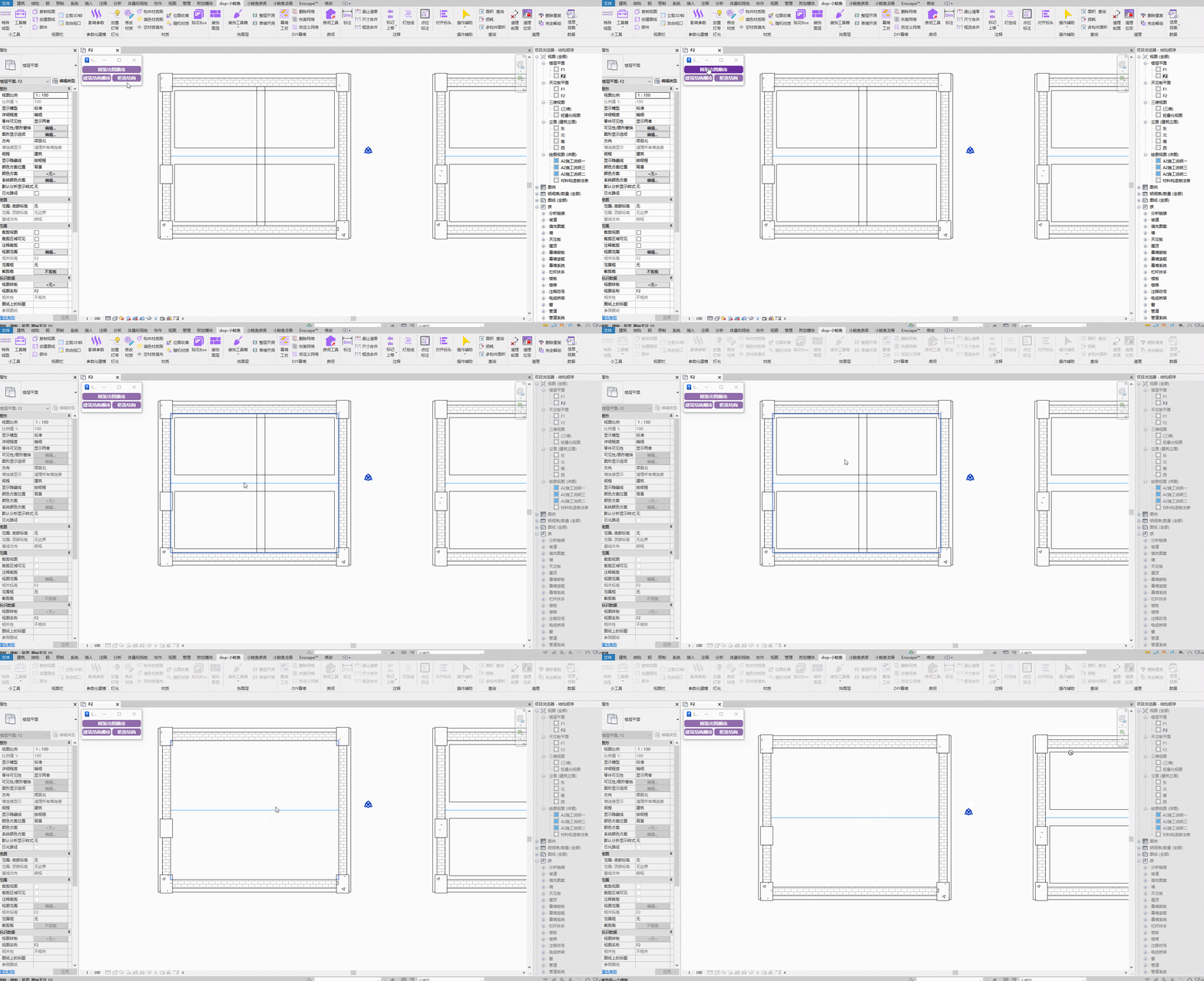
Steps: Click to select the floor slab.
# Building Structure Order

Steps: One-click processing for the entire file. Recommended to be used during the original architectural phase. If one-click connection errors occur, use box-select mode.
# Box-Select Structure
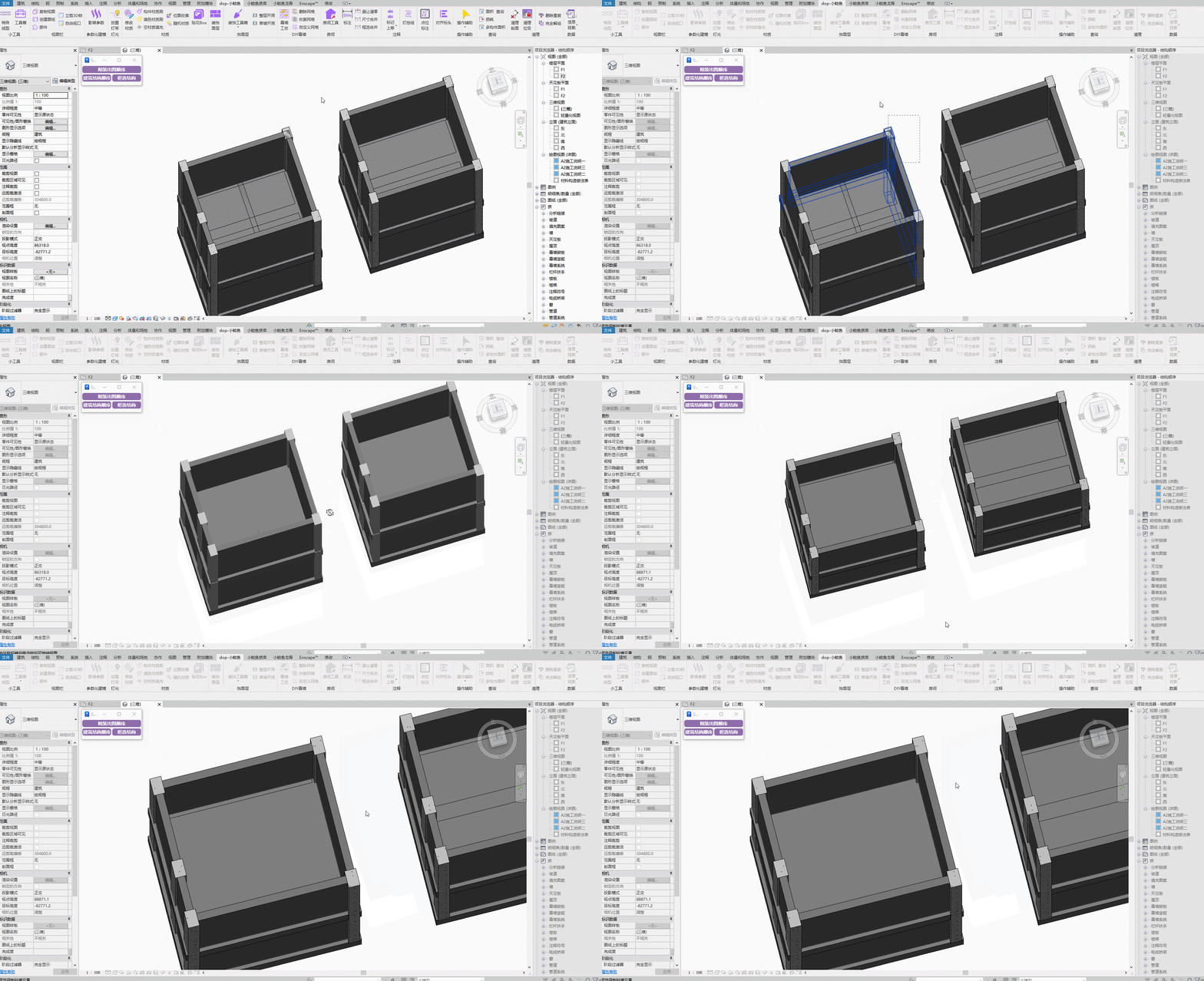
Steps: Box-select the beams, slabs, columns, and walls to be cut.
Watch tutorial video on Bilibili → Structure Order (opens new window)
# Flip Work Plane

Flips face-based families that have no solid placement on the set work plane (e.g., ceiling-mounted bare-grid families placed at a specified level).
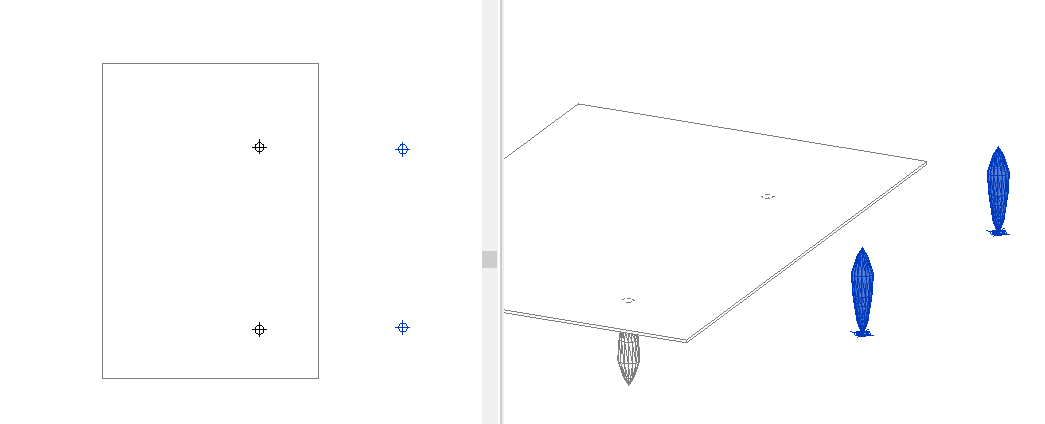
When placing face-based families using a geometric reference face, the family orientation is correct. However, when placed using only the work plane reference, the family defaults to face upward, which may affect subsequent design and cause model construction to deviate from expectations.
Taking lighting fixtures placed at a specified level as an example: if the fixture family defaults to face upward due to the work plane reference, it needs to be flipped. Batch-select the fixture families to flip and click the corresponding button to complete the orientation adjustment.
# Adjust Grid Endpoints

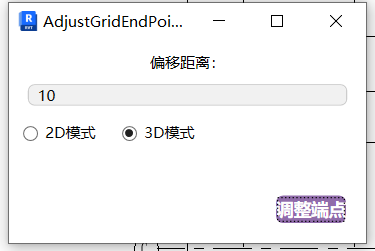
Intelligently locates grid endpoint coordinates based on the current view crop boundary, achieving automatic calibration of grid endpoint positions.
- Parameter Details
Offset Distance: The distance between the grid bubble and the crop view range box (actual distance on the printed drawing).
2D Mode: Uses view-independent mapping, keeping plane parameters independent for each view, only reflecting the current view's parameter state.
3D Mode: Modifies 3D view parameters and automatically syncs to associated view grid systems, ensuring a unified full-model spatial reference.
- Steps
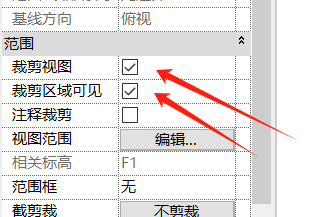
- After creating grids, enable the view crop boundary and crop region display, adjust the crop viewport range, and execute.
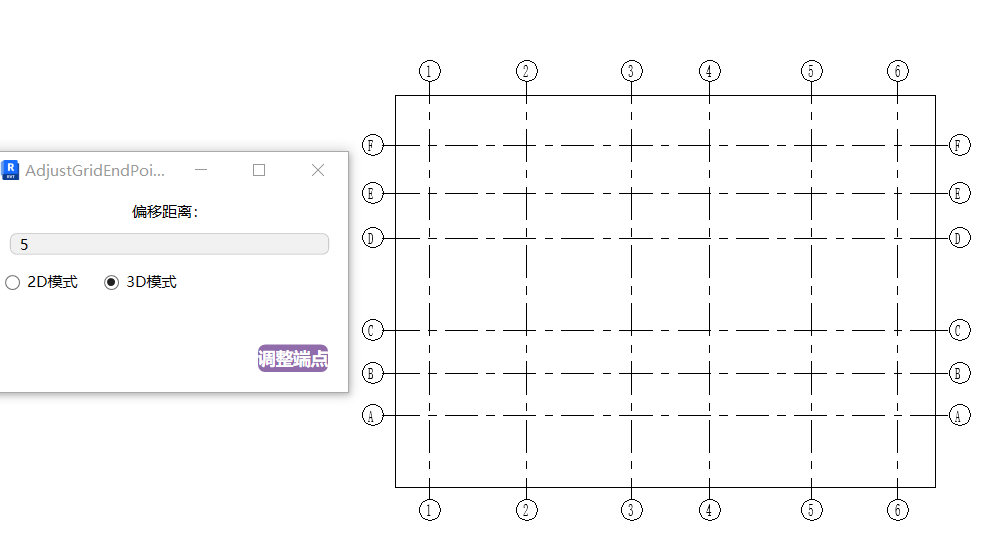
Endpoint offset position can be adjusted multiple times until the desired effect is achieved.
# Grid Renumbering
Intelligent grid numbering. Supports horizontal grids with Arabic numerals (1-99) and vertical grids with uppercase letters (A-Z) for automatic sequential numbering.
Letter numbering skips I and O.
Currently only effective for straight horizontal and vertical grid numbering.
Watch tutorial video on Bilibili → Grid Renumbering & Adjust Endpoints (opens new window)
# Box-Select Numbering
Box-select parallel grids and sort them based on the reference starting point nearest to the bottom-left corner.
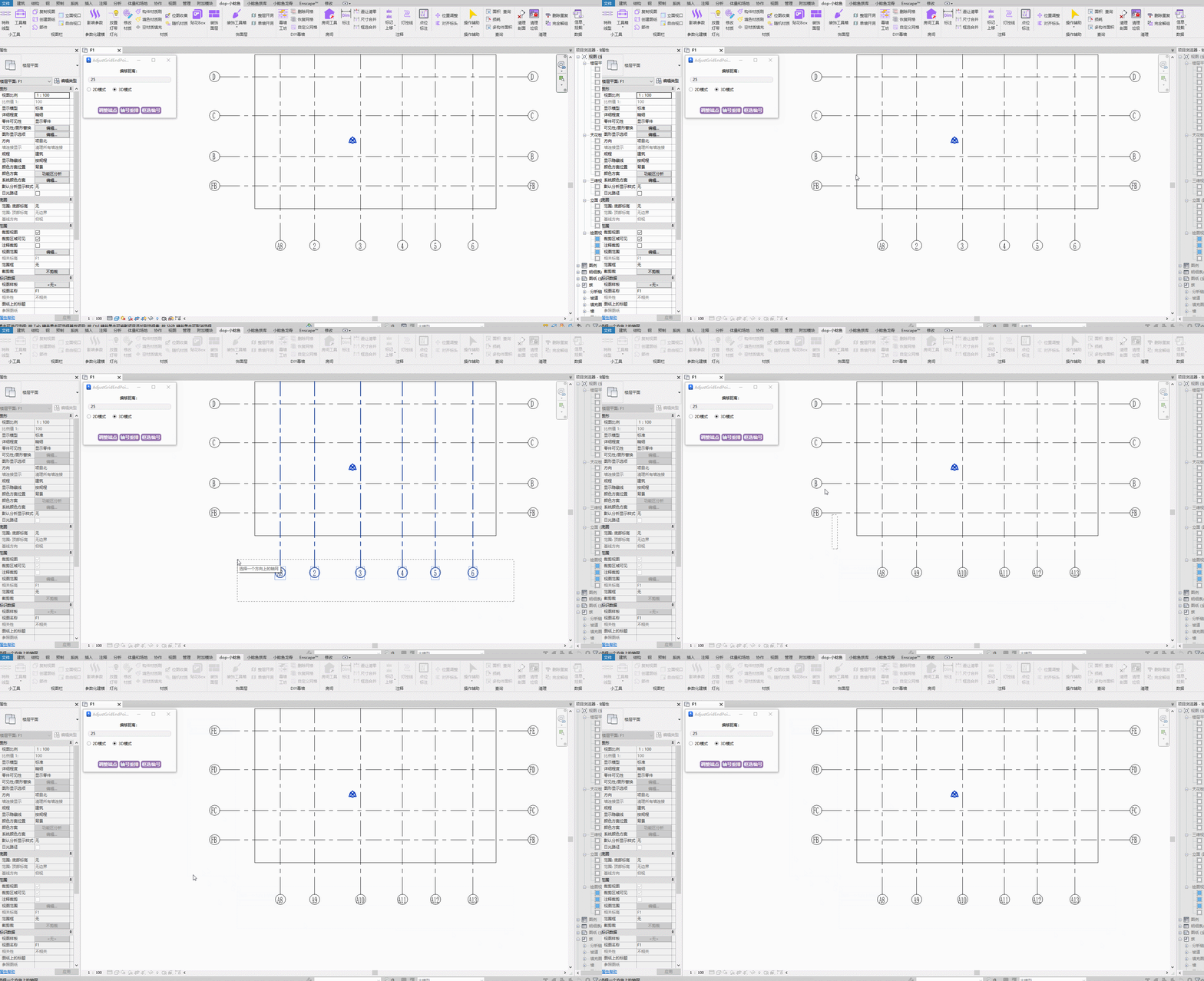
Steps: Modify the first → Box-select the grids to sort.
Watch tutorial video on Bilibili → Box-Select Numbering (opens new window)