# Parametric Modeling
# Influence Parameters

Adjust parameters for components with the same instance parameters — overall increase, parameter randomization, parameter extension, select influence line, select image reference.
Don't limit your application to the adjustment effects in the examples.
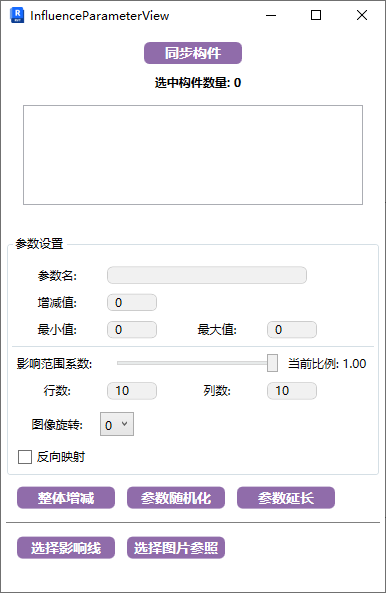
- Parameter Explanation
- Sync Components:
Sync all related components; after one selection, parameters can be adjusted multiple times. You can end the selection state after syncing.
- Parameter Name:
The parameter name must be a model instance parameter.
Ensure all affected models have the same instance parameter name.
- Increment/Decrement Value:
Increase or decrease instance parameters based on original values; adjustment range depends on positive/negative values. If reduced below the model generation limit, the original value is retained.
Works with the "Overall Increase/Decrease" function below.
- Min/Max Value:
The random range interval for model parameter variation.
Works with "Parameter Randomization," "Select Influence Line," and "Select Image Reference" functions below.
- Influence Range Coefficient:
The range and intensity of parameter influence. Value range 0-1, where 1 is maximum influence (full-depth variation). Lower values reduce the influence range and deformation amplitude.
Works with the "Select Influence Line" function below.
- Rows/Columns:
Divides the image into a grid of rows and columns to obtain pixel brightness values. Higher density means finer influence.
Works with the "Select Image Reference" function below.
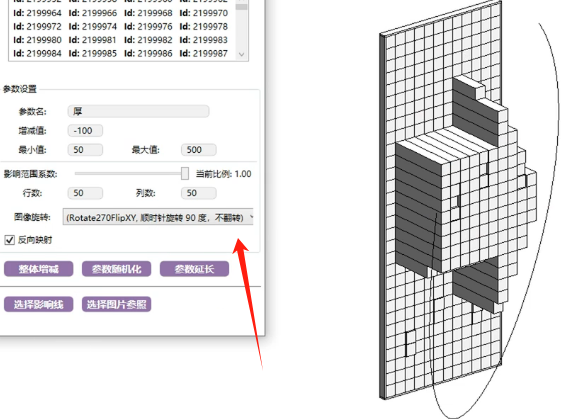
- Image Rotation:
Rotate the image as needed.
Works with the "Select Image Reference" function below.
- Reverse Mapping:
Reverse-map family parameters according to max/min values.
Works with "Select Influence Line" and "Select Image Reference" functions below.
- Steps
# Overall Increase/Decrease
Select the components to be affected and sync, enter the parameter name and increment/decrement value, then click the button.
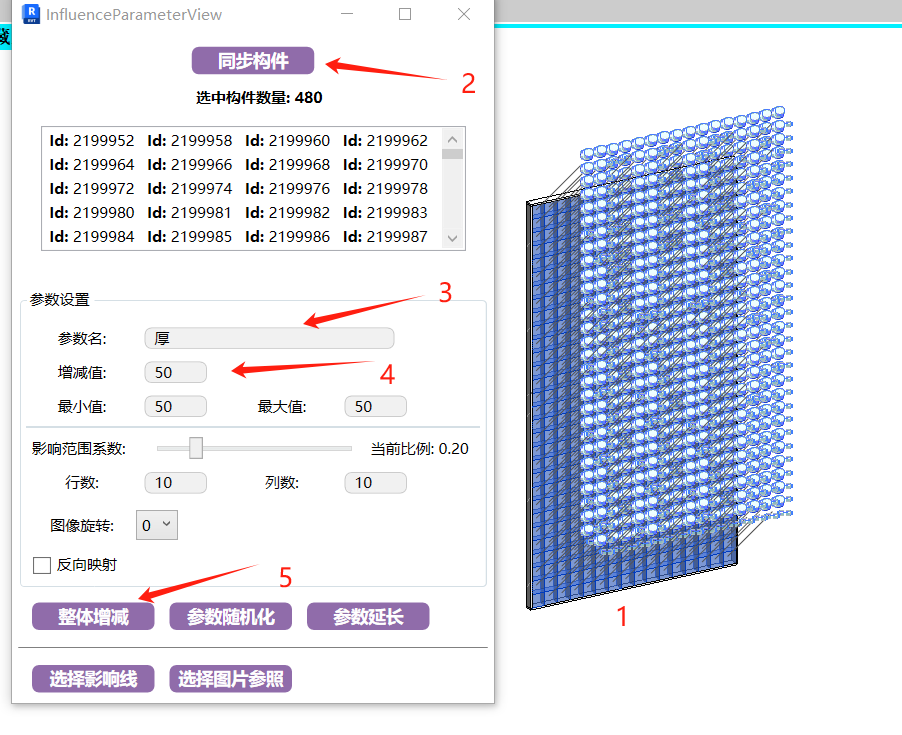
# Parameter Randomization
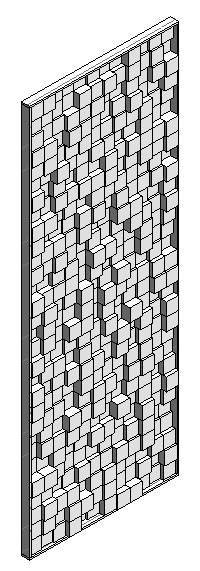
Select the components to be affected and sync, confirm the model's instance parameter name, enter min and max values, then click the function.
Randomization occurs between min and max values; click multiple times for different effects.
# Parameter Extension
Extend rays in the parameter direction until they hit model obstructions to adjust parameter values.
The parameter type here is mainly types that can extend in a specified direction, e.g., rods can extend, but parameters like radius cannot.
Application example: When placing pendant lights at a specified level, ensuring all light heads are at the same level but wire lengths vary due to top structure — use parameter extension to adjust all fixture wire lengths to match.
# Random Rotation
Randomly rotate components by a specified degree range to make the scene more dynamic.
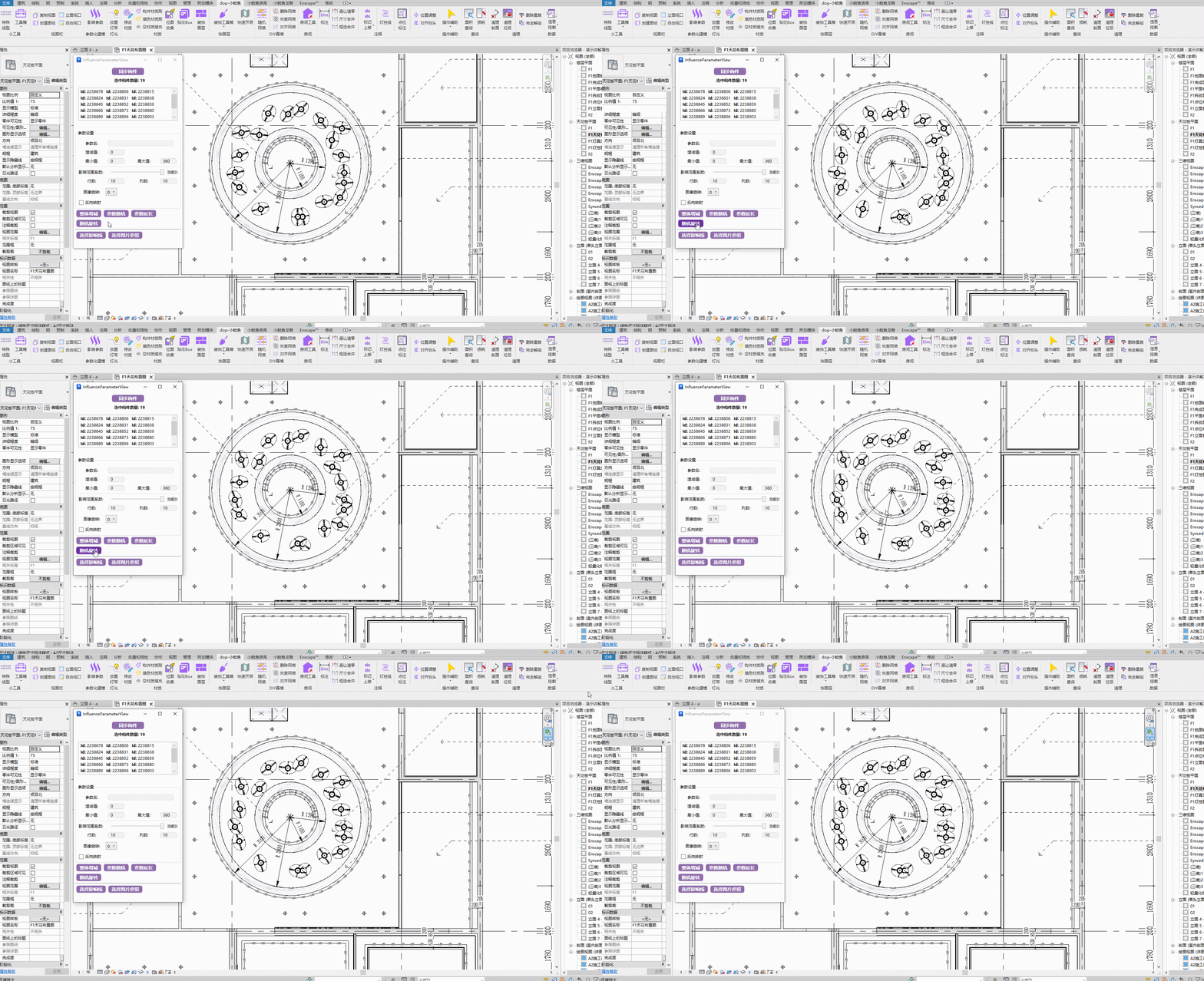
Bilibili video demo → Influence Parameters (opens new window)
# Select Influence Line
The influence line must be a 3D mass line, allowing secondary adjustments of the mass line to adjust component parameters.
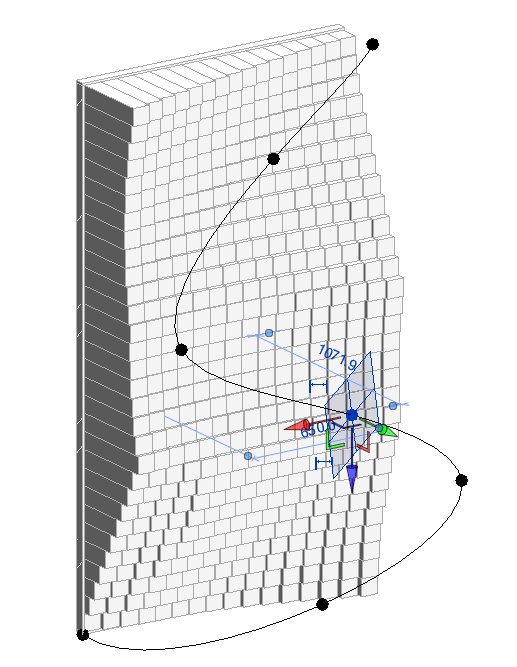
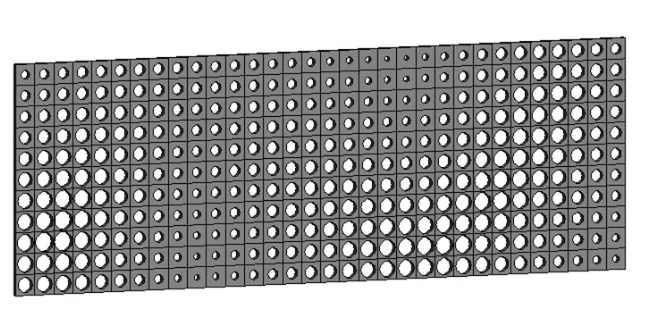
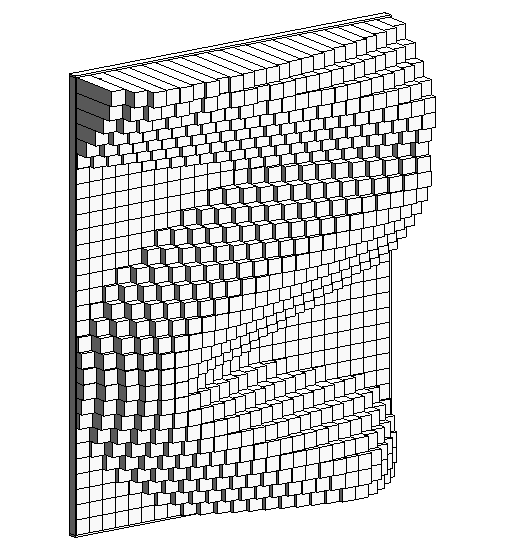
The principle: calculate the distance from each component's center point to the nearest point on the 3D line, then map these values according to max/min values, with an influence range parameter added.
Based on the examples below, you can expand its application — not just length parameters, but also radius, scale factor, etc.
# Select Image Reference
Select an image; parameters are adjusted based on pixel brightness from the image's row/column subdivision. Max/min values define the brightness range mapping.
More row/column subdivision is not always better.
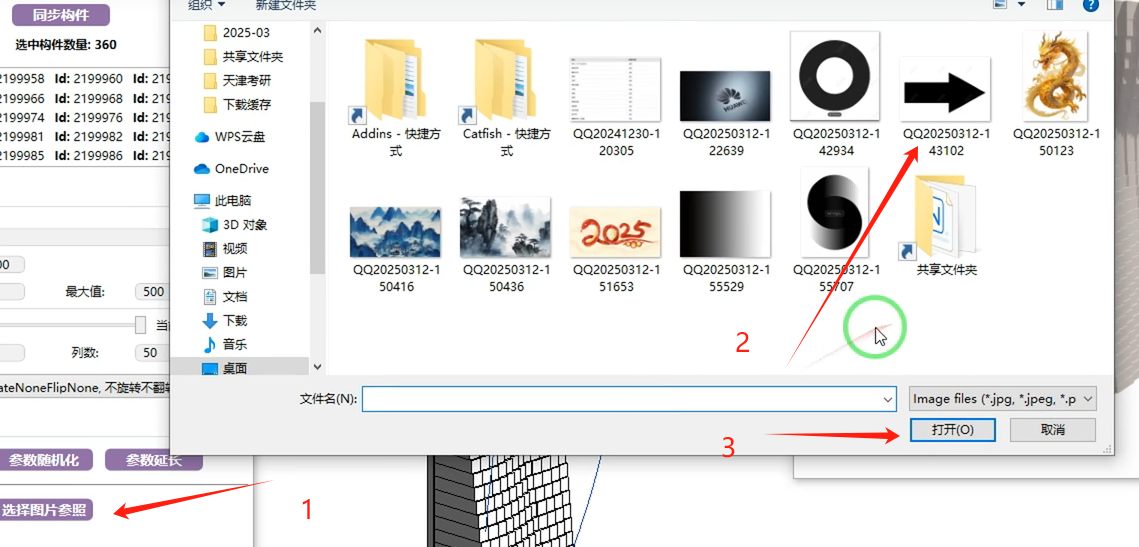
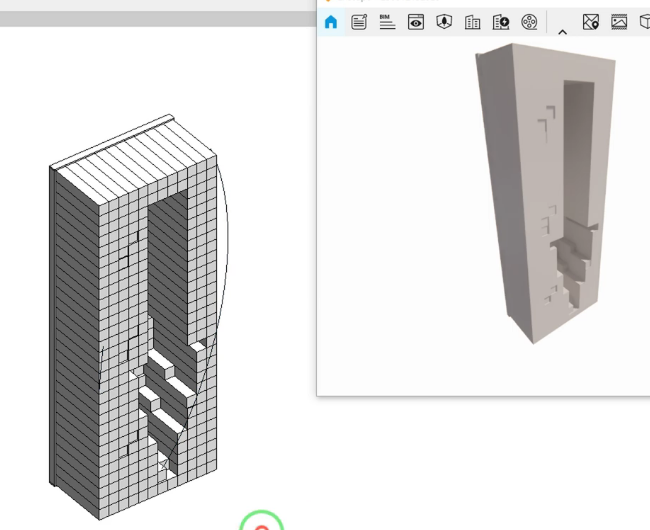
Reverse mapping can flip the brightness relationship.
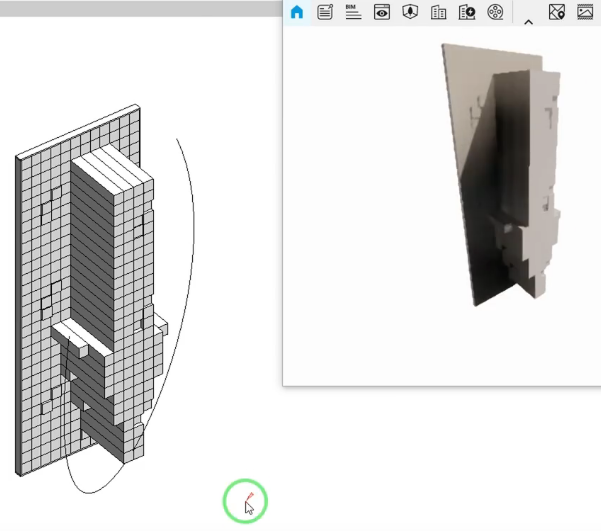
You can also directly adjust the influence effect by rotating the image, without modifying the source image.
Bilibili video demo → Influence Parameters (opens new window)
# Image to Model
Adjusting the brightness threshold helps better capture the desired contour. Threshold can only be 0-255.
# Engraving
Create based on the image's black and white channels.
The simplification factor parameter is recommended between 0.001-0.05 (higher values = simpler pattern). 0.002 has been tested as a good value. If generation fails with some values, try increasing or decreasing and re-creating.
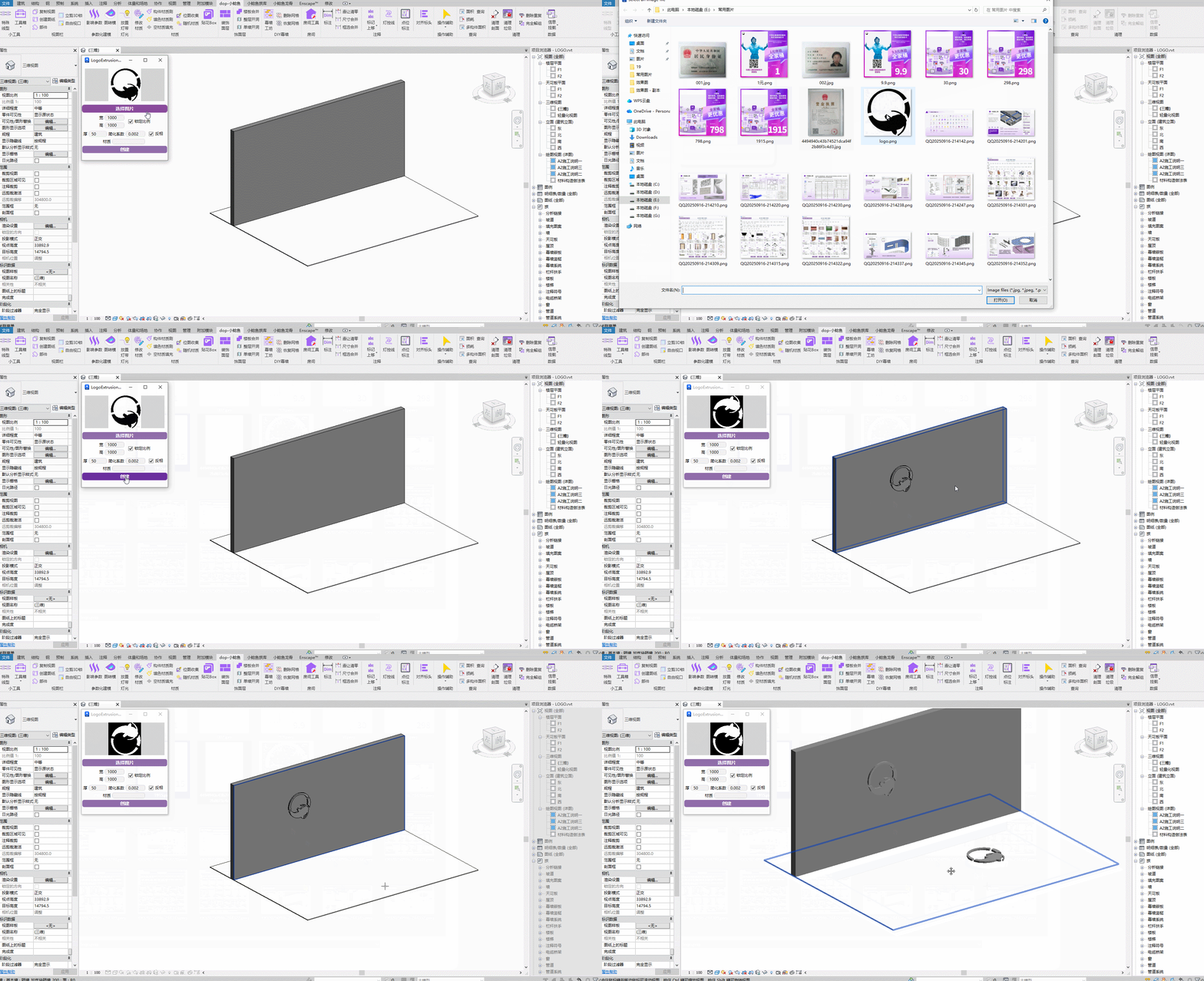
Steps: Select reference image → Set parameters → Click the target face to generate.
Bilibili video demo → Image to Model (opens new window)
# Adaptive Engraving
Primarily for adaptive modeling on picked geometric faces.
# Image Detail
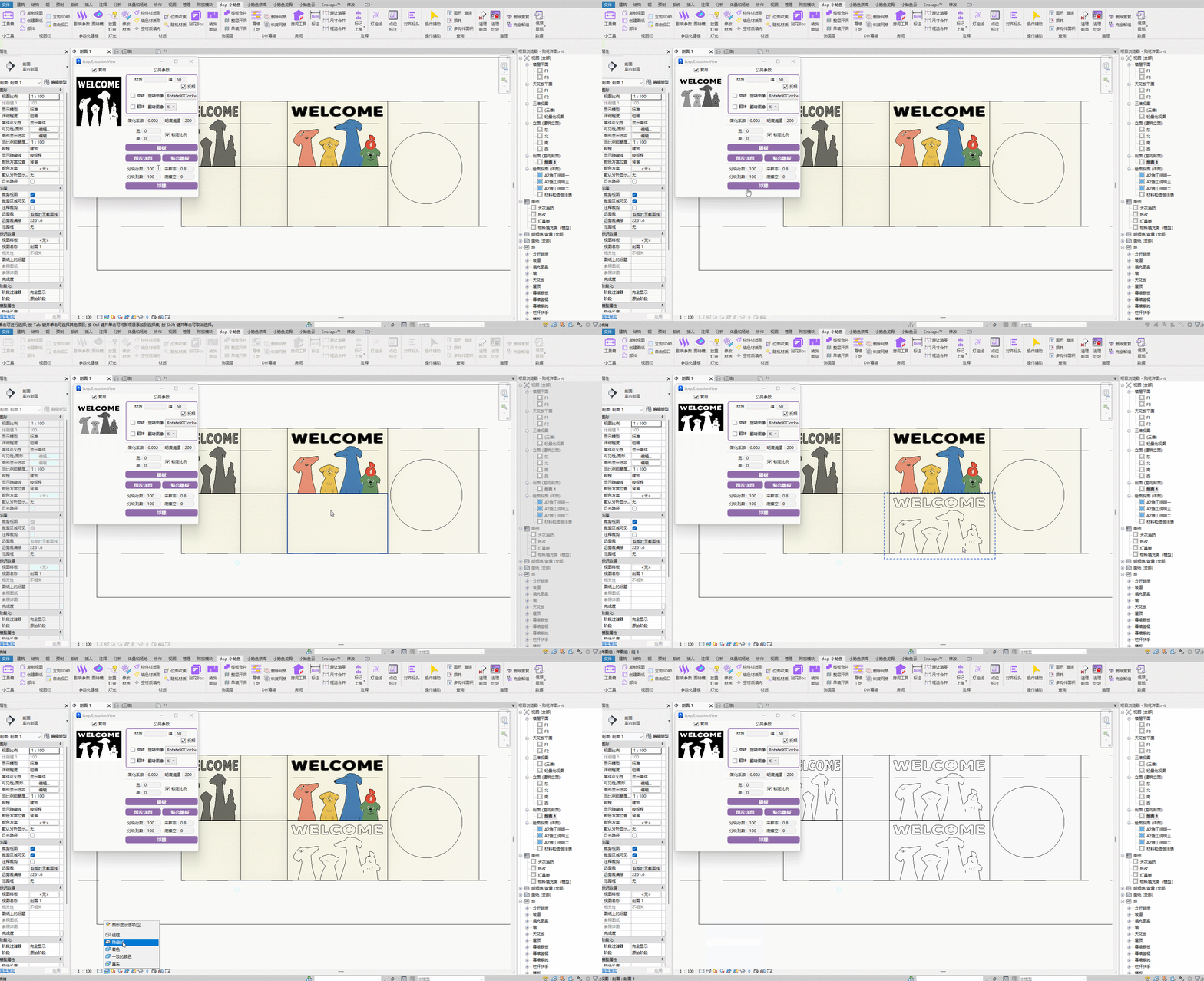
Steps: Set parameters → Select image → Click the target face to generate.
Bilibili video demo → Image Detail (opens new window)
Used to enrich construction drawing elevations.
# Relief
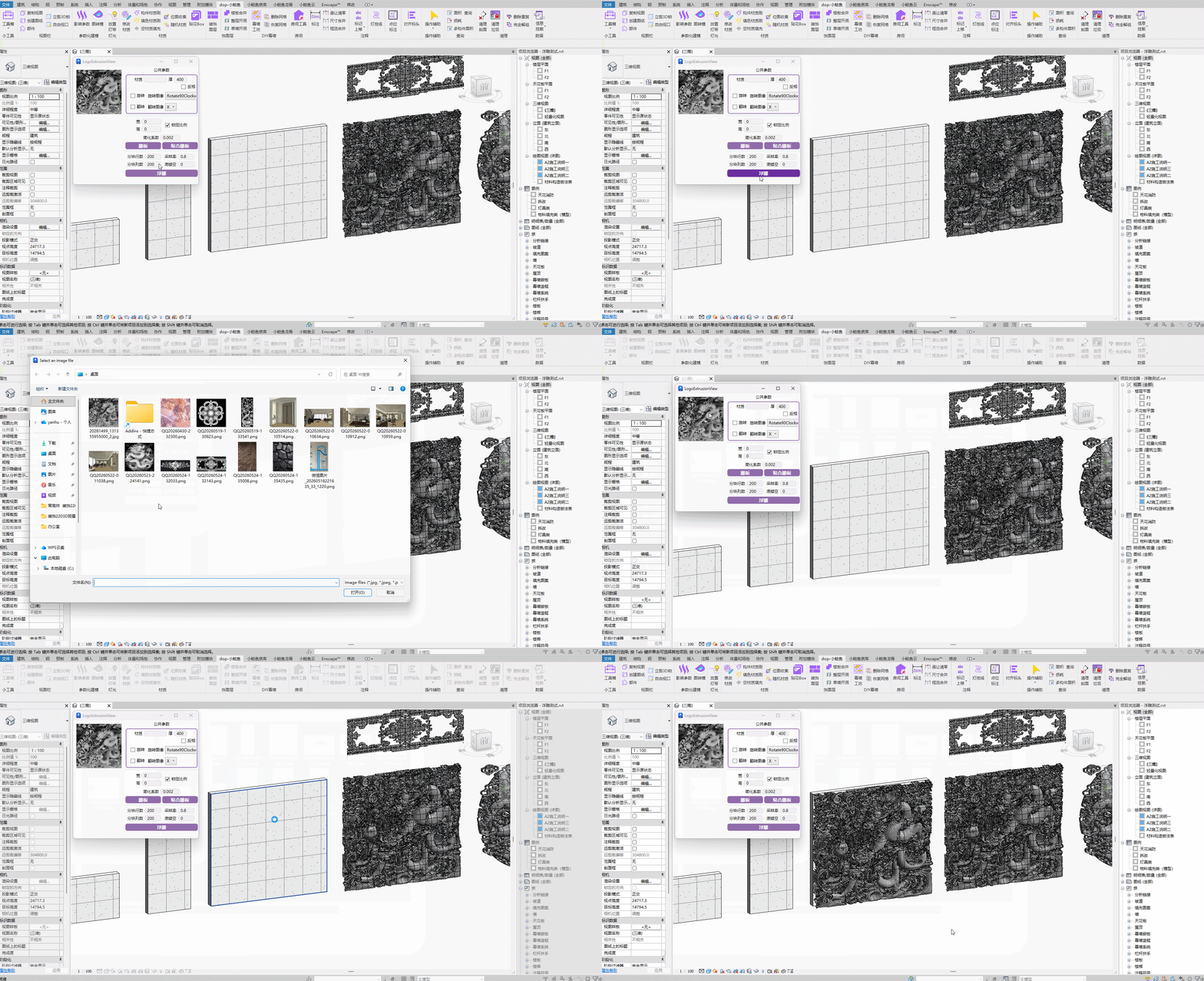
Steps: Set parameters → Select image → Click the target face to generate.
Image selection is affected by pixel resolution. It's recommended to search for dedicated relief black-and-white images.
Bilibili video demo → Relief (opens new window)