# Room
# Room Toolbox

Bilibili video demo → Room Parameter Adjustment, Room Curve Numbering, Room Cleanup, Name Reset, Room Solid, Write Room, Room Finish, Clear Height Analysis (opens new window)
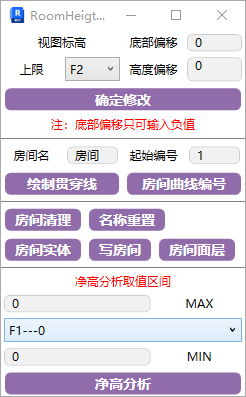
# Room Curve Numbering
Number rooms in order along a through-curve.
Note: The through-line must be a single line — can be straight, curved, spline, etc.
Room names must be correctly filled in; numbering applies to the specified room type.

You can see rooms are numbered according to the curve's traversal.
# Room Parameter Adjustment
Adjust room heights in the current view to serve room-related calculations.
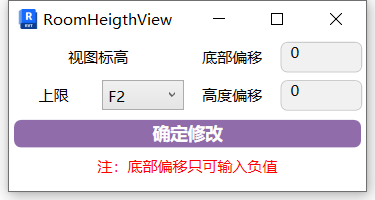
Purpose of room parameter adjustment: Think of a room as an invisible box. To make this box encompass all elements in the current room, you need to adjust its bottom and top to wrap the room's components. Default room parameters don't fully encompass the entire room space.
Bottom offset is typically set to -50 to include the floor area. The upper limit is generally based on the bottom of the level above.
# Room Cleanup
Clean up unplaced rooms and rooms smaller than 1 square meter, including rooms created in different phases, removing unreasonable rooms all at once.
# Name Reset
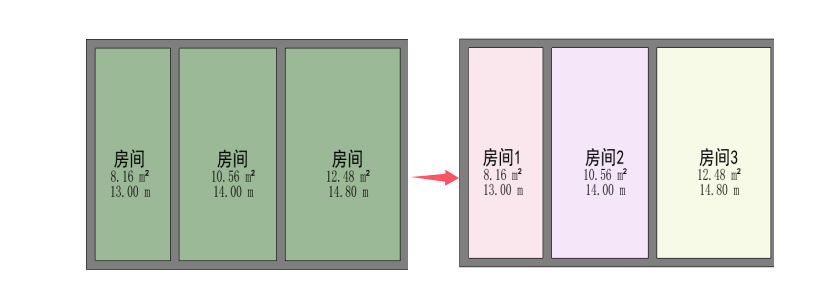
Encode rooms with the same name in the view for more accurate differentiation in schedules.
# Room Solid
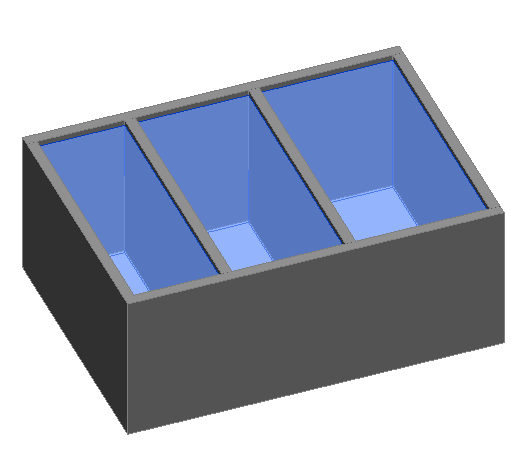
Generate model solids of room spaces for viewing room parameter states and exporting to IFC.
# Write Room
Assign the current room name parameter attribute to components within the room. This allows sorting by room area in schedules.
Before writing room data, add a "Room" project parameter to components and ensure room parameter adjustment has been done.
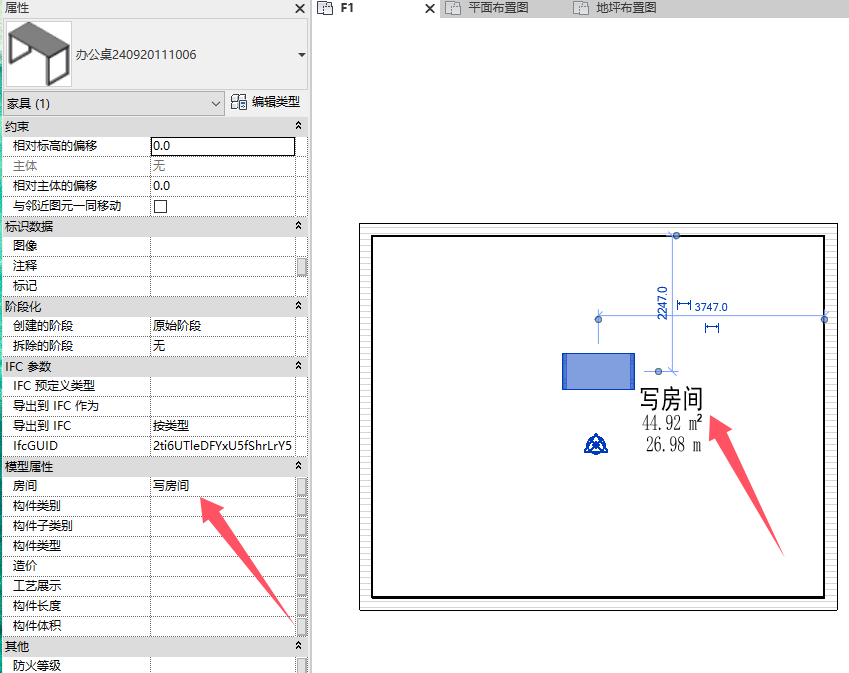
After selecting a room, you can see components contained within the room space tagged with the room name.
# Room Finish
Click a room to write its wall, ceiling, and floor finish materials.
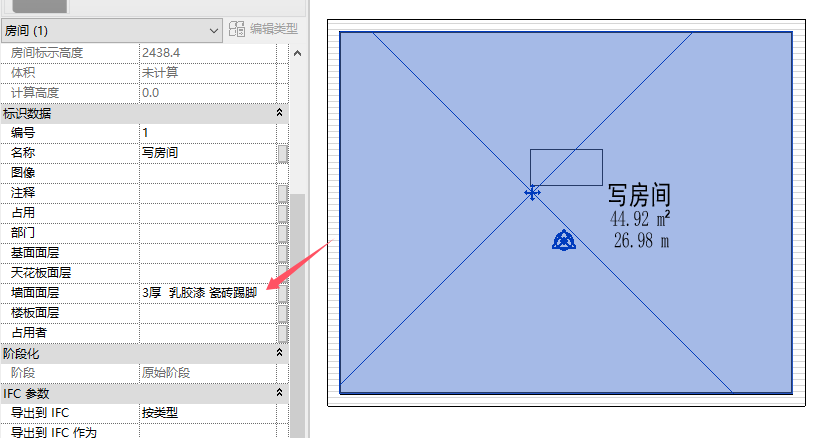
The example only shows wall finishes. You can see the corresponding finish types written in the room properties. Multiple types are written with line breaks and visible in schedules.
# Clear Height Analysis
Add a room clear height parameter and generate clear height analysis diagrams using color schemes.
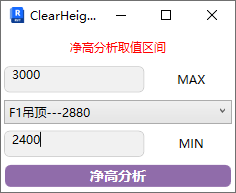
In the parameters, select the ceiling elevation part, then set max and min values in the window to calculate only the lowest elevation of components within this range.
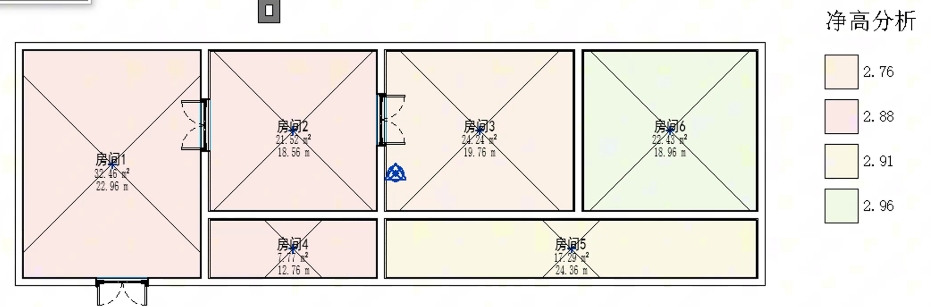
Combined with color schemes, you can produce clear height analysis diagrams like the one below: