# Materials
# Modify Material

Modify, rename, copy, paint, and replace materials on selected components.
No need to drill down through component property types step by step to enter material editing — greatly improving material editing efficiency.
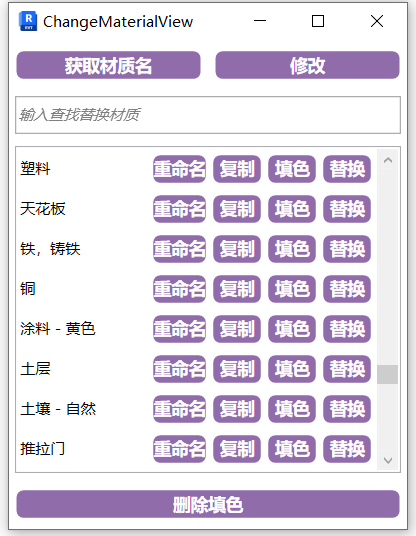
- Parameter Explanation
- Get Material Name:
Directly pick the material name of an object; the material name is saved to the clipboard. Convenient for quickly finding the current material in Enscape's material panel.
Enscape's material management panel only displays materials of generic material type. Revit-specific materials such as wood, floor tile, metal, etc. are not recognized. So if you can't find a material in Enscape's material panel, click Modify and use the native material editor.
- Modify:
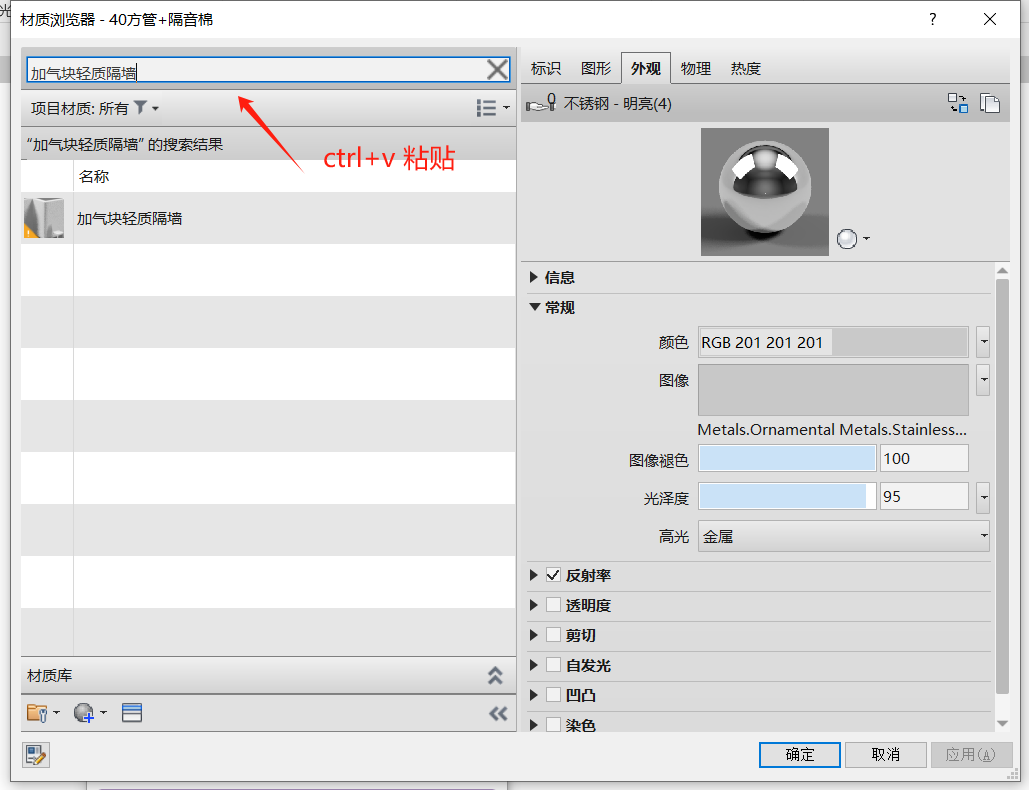
Click Modify then click the corresponding component to directly open the material editor, then quickly search using the obtained material name. (Material name is already saved in the clipboard; paste to search.)
- Rename:
Quickly modify the corresponding material type name without opening the material editor.
- Copy (Convert to Default):
Convert non-default material appearances to default material appearance, making it easier to modify materials in Enscape.
- Copy:
Copy the current material without opening the material editor.
- Paint:
Paint selected faces of a component with a known material name.
- Replace:
Replace the component's original material with the selected material. When replacing, if a custom family has multiple material parameters but no preset materials, it will be entirely replaced with one material type.
- Remove Paint:
Remove painted materials attached to model surfaces.
Bilibili video demo → Modify Material (opens new window)
# Component Material Brush

Apply the material from a picked component to another component. Similar to Revit's MA (Match Type) functionality.
Click the function, then click the model material to sample, then click the model to apply. (Setting a shortcut key is even better.)
# Paint Material Brush

Apply the material from a picked component to a single face of another component via paint.
Similar to Component Material Brush, but only affects the selected surface material of the component.
Bilibili video demo → Component Material Brush, Paint Material Brush (opens new window)
# Empty Material Fill

Randomly assign materials to components with empty or default materials for differentiation. Random materials display random colors in color display mode, making it easy to find components without assigned materials.
Bilibili video demo → Empty Material Fill (opens new window)
# Bitmap Collection

Collect and organize texture files used in project materials, effectively preventing texture loss during project transfer.
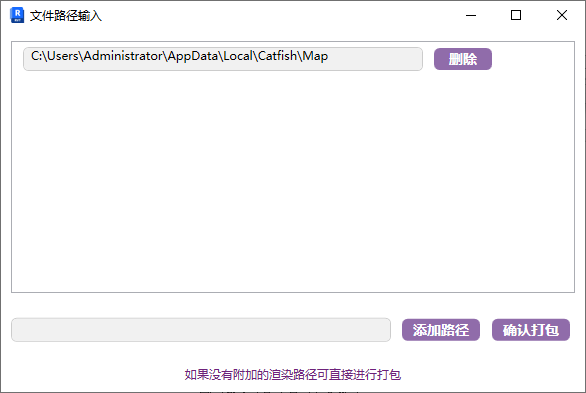
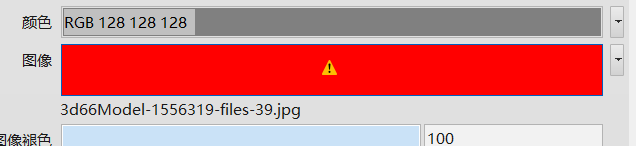
When a material in the project shows a red icon, it means the software can no longer find the texture path.
In this case, add the possible paths. When packaging, if a path is missing, it will search through the added paths in order.
Note: Save the project first before using Bitmap Collection.
Bilibili video demo → Bitmap Collection (opens new window)
# Random Material
Randomly assign materials to the instance materials of selected components.
First select the components to randomize, then use the Random command.
Note: The material parameter must be an instance parameter.

Bilibili video demo → Random Material (opens new window)
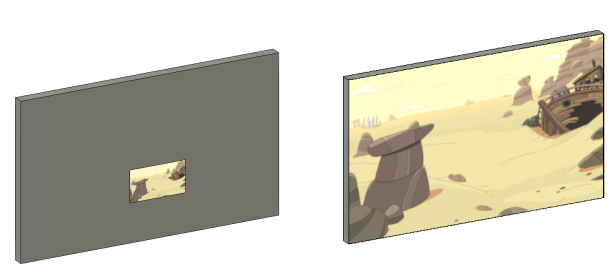
# Decal Box

Automatically match decal size to the placement surface size.
- Steps
Click the face where the decal is placed, then click the decal on that face to match the decal to the face size.
Continuous click operations are supported.
Bilibili video demo → Decal Box (opens new window)
← Lighting Finish Layer →