# Data
# Information Assignment

Write length, area, volume, fire rating, cost, category, subcategory, type, and value assignments to models.
Bilibili video demo → Information Assignment (opens new window)
# Model Information

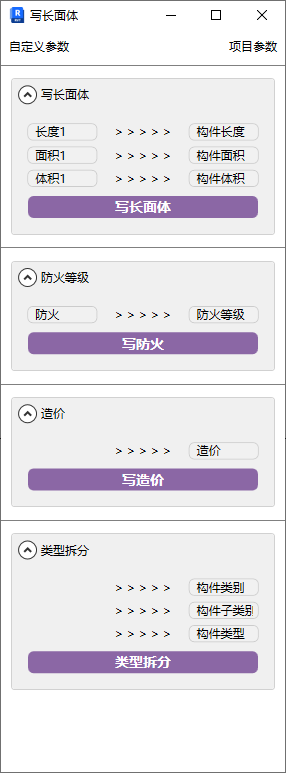
Before writing information, confirm that the corresponding project parameters have been added and match the parameters to be read/written in the window.
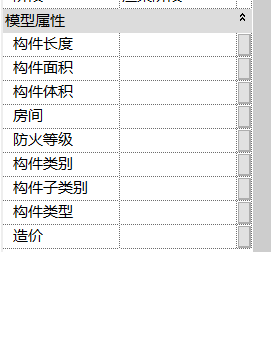
- Parameter Explanation
- Write L/A/V (Length/Area/Volume): Read the model's own component information and assign length, area, and volume attributes for presentation in schedules.
The custom section in Write L/A/V is primarily for determining parameter names in custom families. System families don't need attention here.
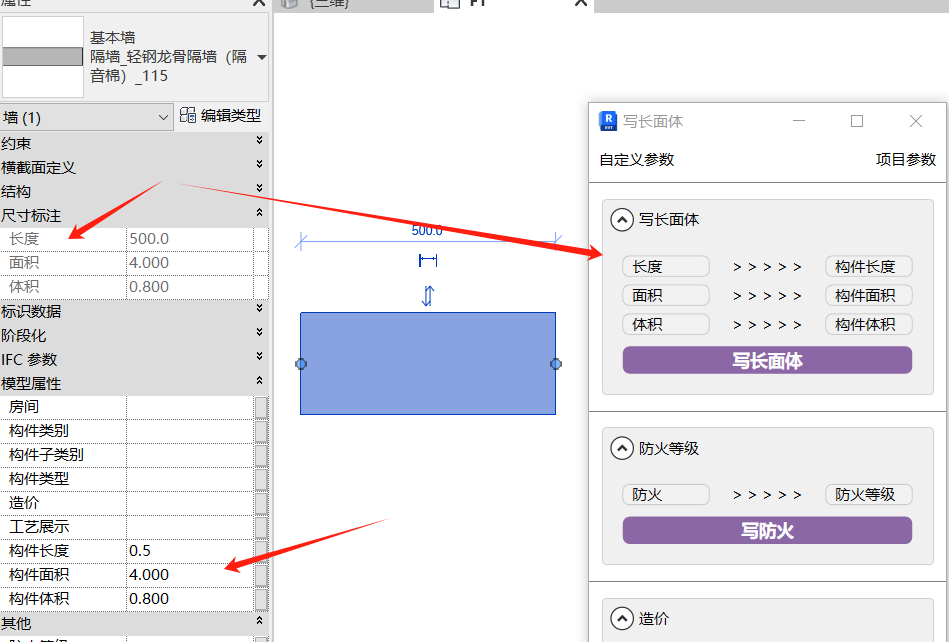
- Fire Rating: Read the model's own type identity data and assign fire rating attributes.
- Cost: Read the model's own type identity data and assign cost attributes.
- Type Splitting: Split the model name into three segments for categorization and summarization in schedules. Example: "Partition_Light Steel Keel Partition (Sound Insulation)_115" is a three-segment name.
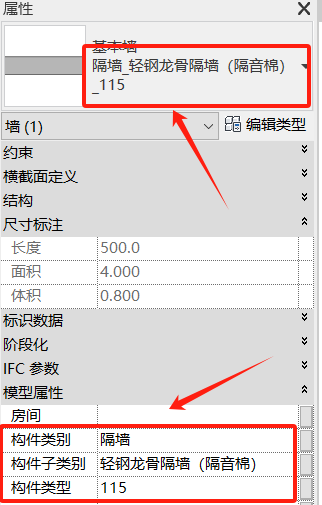
Marquee-select the models to write, then click the corresponding function to write. You can also operate directly in schedules.
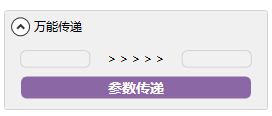
- New Universal Transfer:
Transfer various parameter information from the model to corresponding project parameters in text form.
# Write Project Base Point

One-click adjust the project base point position.
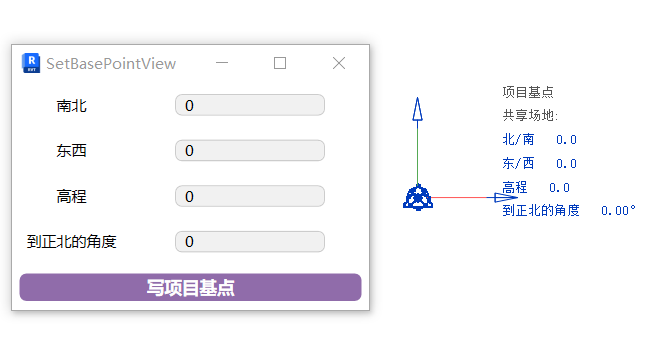
For large project files, modifying the project base point causes response delay with each data entry. Using the plugin, filled information can be submitted all at once.
# Multi-Project Base Point
Modify the same project base point parameters for multiple project files without opening them.
Steps: Fill in project base point parameters → Click command → Marquee-select project files to modify.
Bilibili video demo → Multi-Project Base Point (opens new window)
# Name Audit

Assists the "Type Splitting" function by quickly checking whether model names follow the three-segment naming convention.
Marquee-select models to check, then click the function to display types that don't follow the three-segment naming convention in the window.
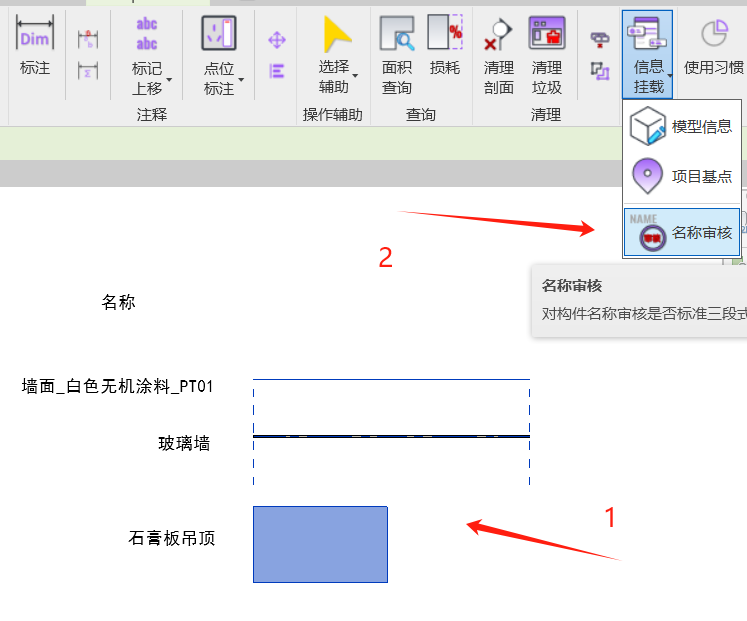
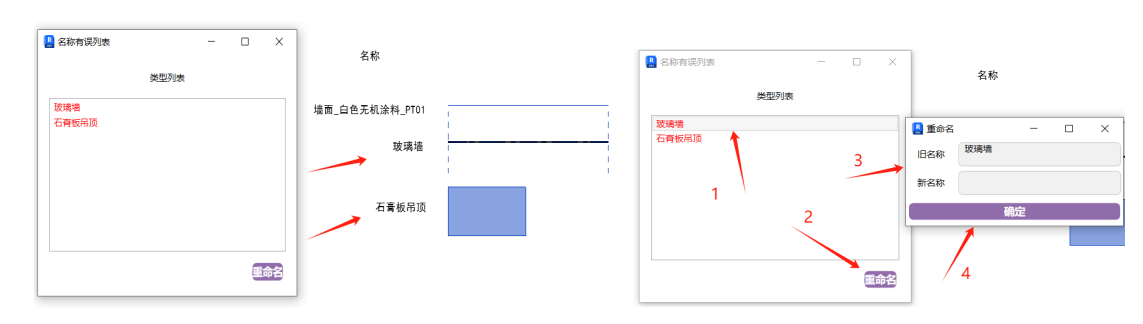
Types not conforming to the three-segment naming convention will be identified. Simply rename them directly without operating in the model.
# Rename

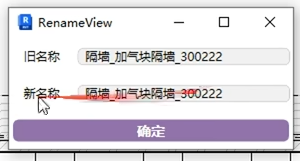
Quickly rename component names.
Recommended to set a custom shortcut key.
Select the component to rename, modify the new name in the popup, and confirm. You can continuously rename multiple components. Press Esc to end the current command.
Bilibili video demo → Rename (opens new window)