# Finish Layer
# Decorative Finish Layer

Create decorative finish layers: wall, ceiling, floor, threshold stone, roof.
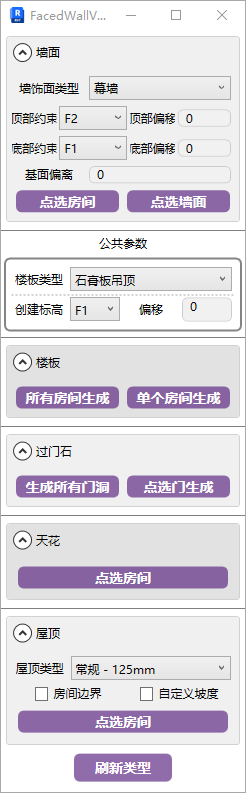
- Parameter Explanation
- Wall
Set the corresponding parameters, click a room to quickly generate decorative finish layers.
In practice, prioritize generating the largest coverage type for a room first, then modify partial finishes as needed. You can also generate by clicking individual walls.
If finish layers are generated after outer frame dimensions already exist, a prompt to delete annotations will appear. Delete them and regenerate outer frame dimensions afterward. So always complete finish layers before considering outer frame dimension annotations.
- Common Parameters
The common parameters section applies to the function buttons at the bottom of the window.
- Floor Slab
For floor slab generation, it's also recommended to prioritize the type that occupies the most area, then manually replace the minority types.
- Threshold Stone
For threshold stone generation, it's recommended to generate room floor slabs first, as it uses the slab edge lines on both sides of the opening to determine the range. For exterior wall door openings, it extends 200mm outward from the interior slab edge.
Click door/partition to generate:
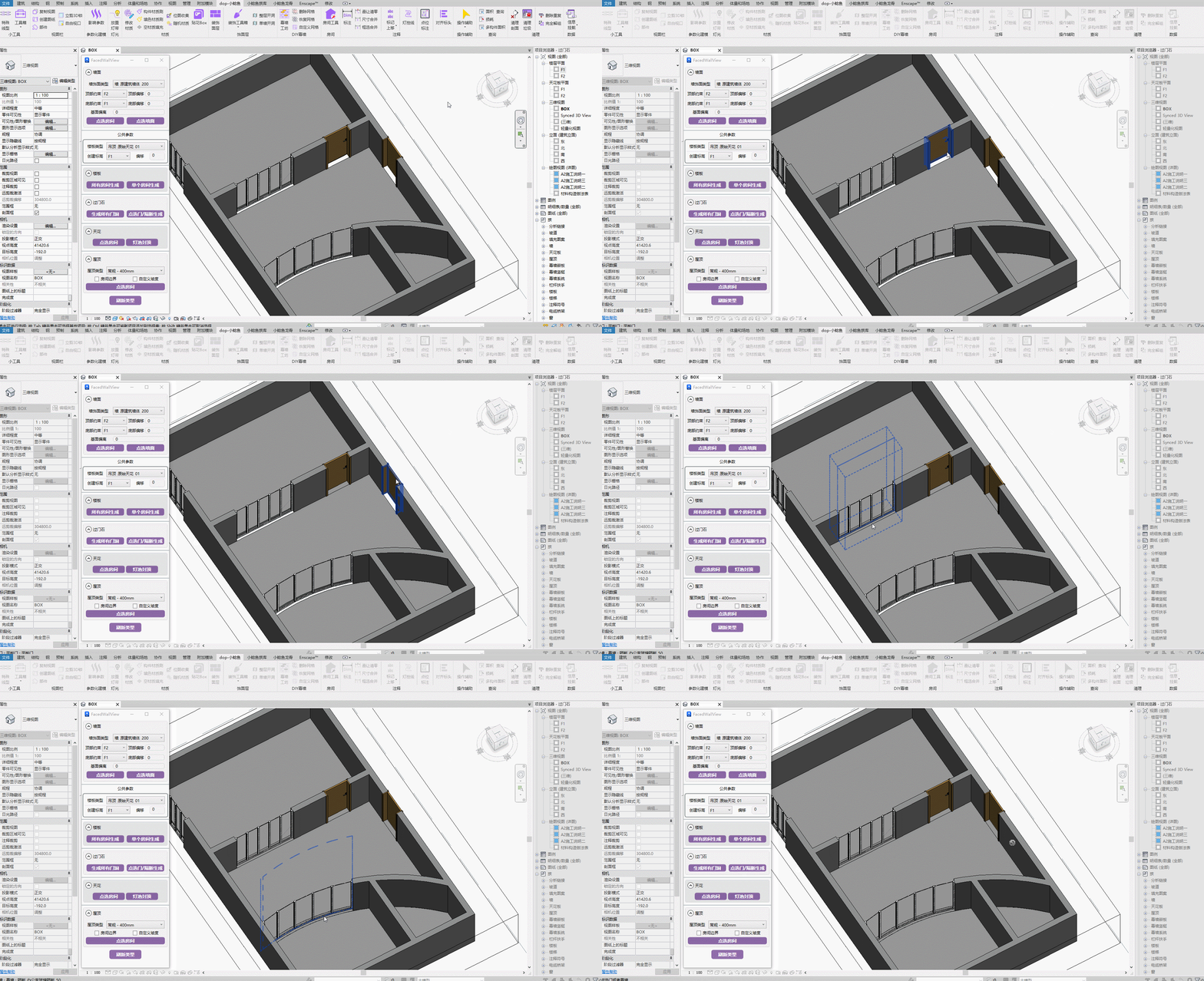
Steps: Click the door or the curtain wall partition that cuts the wall.
Bilibili video demo → Threshold Stone (opens new window)
- Ceiling
The ceiling here uses a floor slab type as a substitute, not Revit's native ceiling component.
Using floor slabs as ceilings has many benefits — explore them yourself.
# Light Cove Ceiling Closure
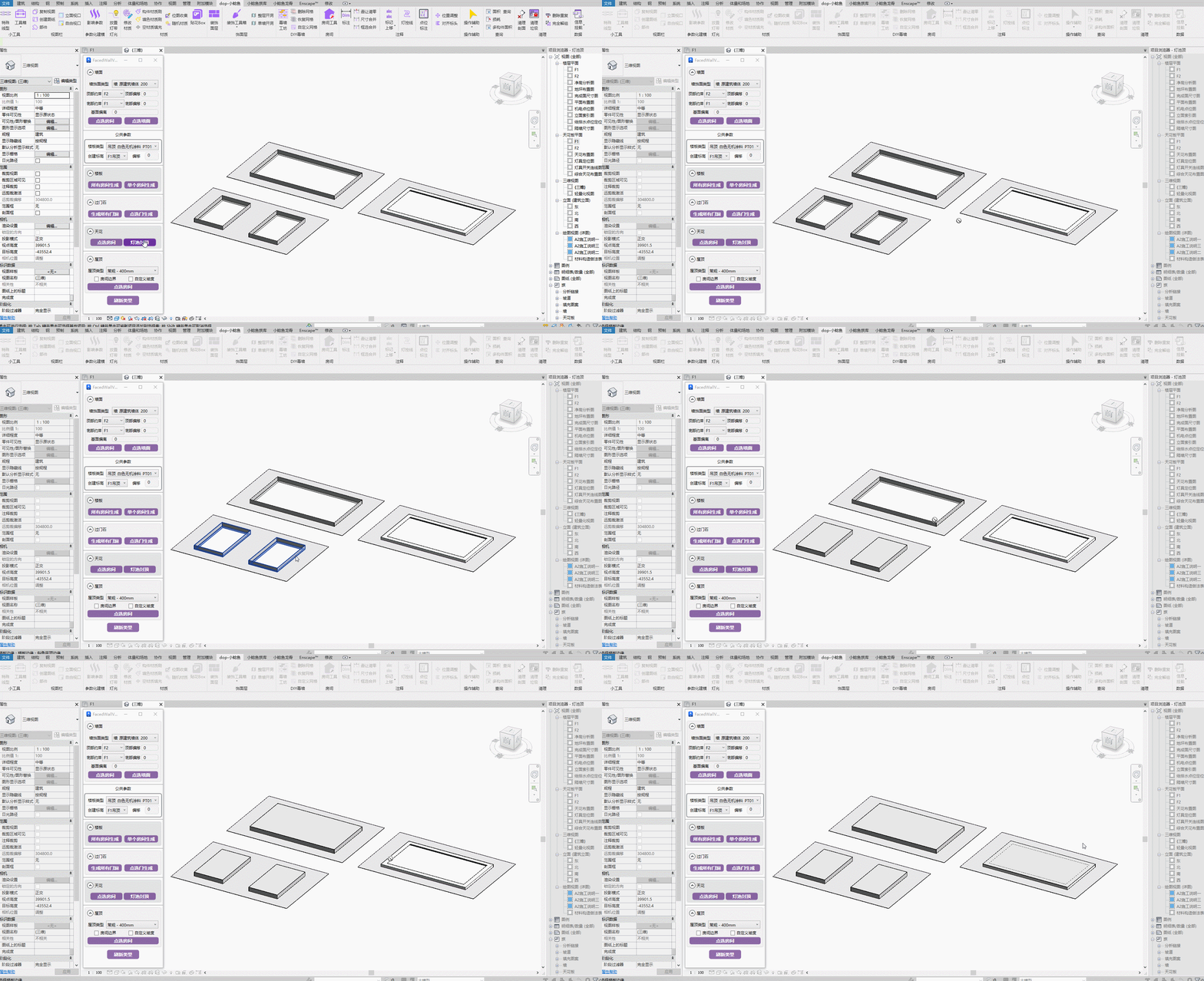
Quickly close the top of closed-loop floor slab edges. The ceiling type is the same as ceiling creation in the common parameters section.
# Roof
If roof creation fails, manually create a random roof in the project, then delete it, and re-execute the plugin command. It should work normally after that.
Besides generating common block material ceilings like mineral fiber board, it can also be used to generate floor tile paving.
This uses the sloped glazing property.
# Opening Edge Sealing
Seal the side panels of wall openings (doors, windows, partitions) where the base wall opening exposes no finish layer.

Uses the roof type from common parameters.
If roof creation fails, manually create a random roof in the project, then delete it, and re-execute the plugin command. It should work normally after that.
Bilibili video demo → Opening Edge Sealing (opens new window)
# Window Sill Stone
Create window sill stone, compatible with window families and curtain wall openings.
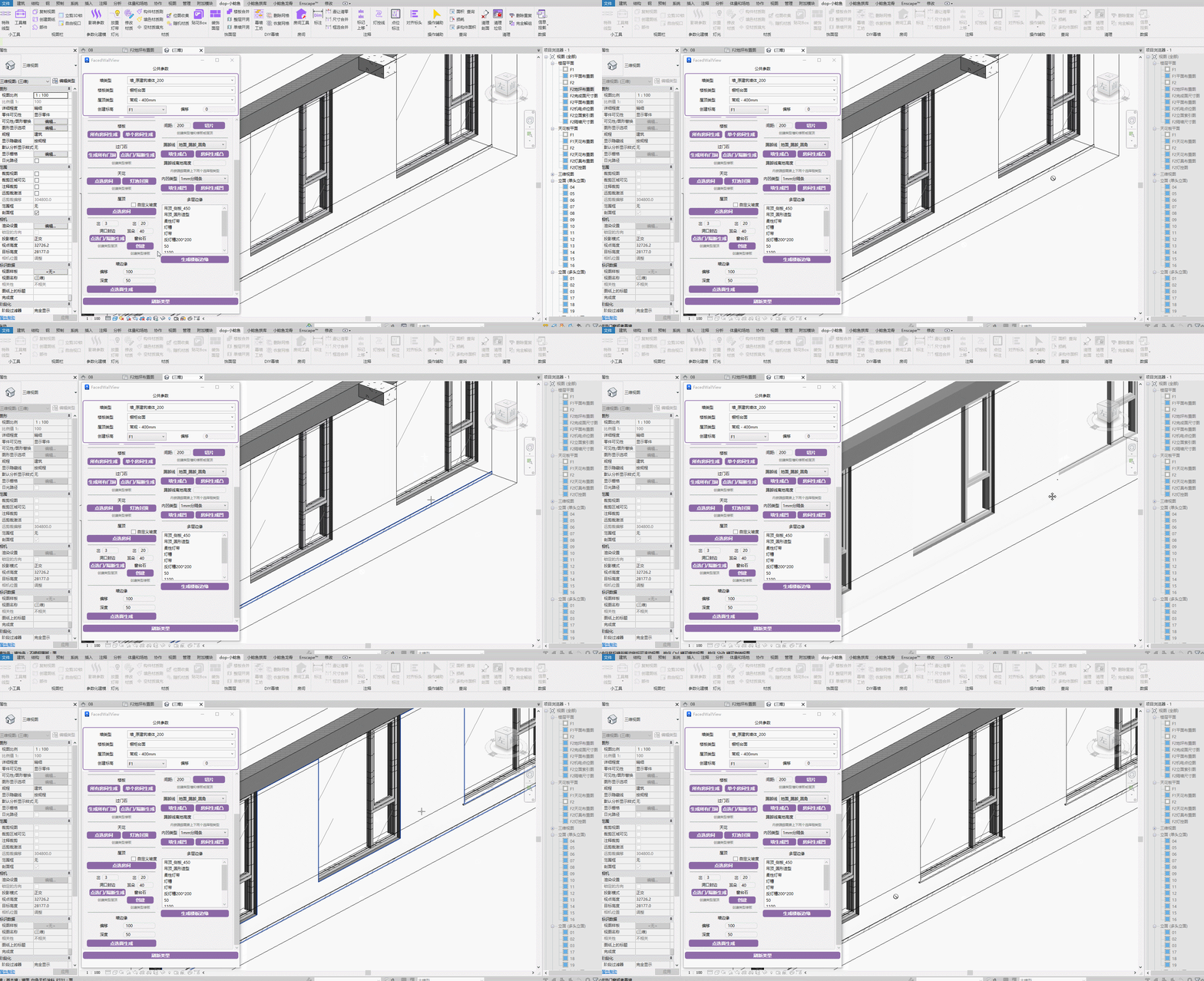
Steps: Select window or curtain wall → Select finished surface.
Ensure a finish layer exists before creating.
Bilibili video demo → Window Sill Stone (opens new window)
- Refresh Types
When new types are created in the project, click the Refresh button to ensure new types are available in the parameter options.
Bilibili video demo → Decorative Finish Layer (opens new window)
# Baseboard

Pick a room to generate room baseboards, supporting recessed baseboard creation.
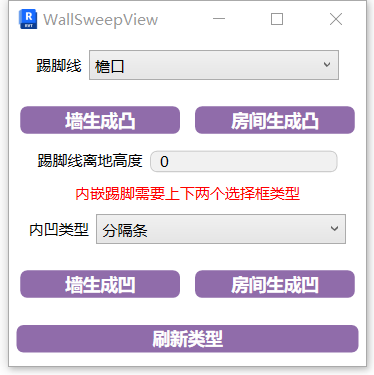
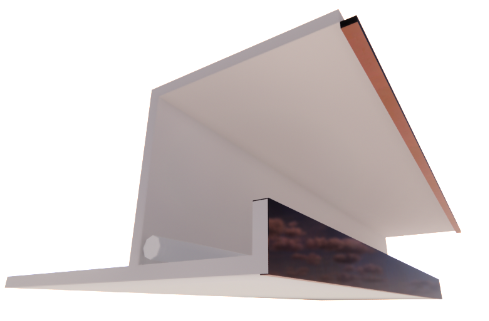
To generate recessed baseboards, both upper and lower types must be used together. The reveal cuts the wall, and the wall sweep fills the recess.
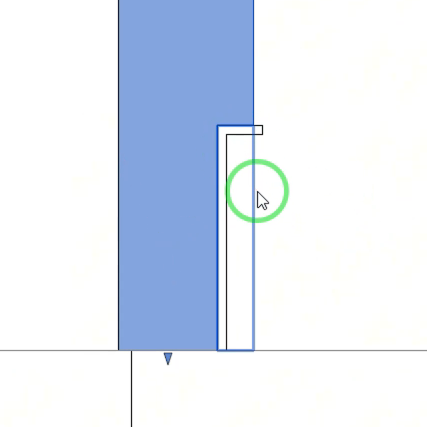
Always create the finish layer before creating baseboards!
The benefit of creating baseboards separately is that they can be hidden in plan views. If directly displayed within the wall type, they cannot be hidden.
Bilibili video demo → Baseboard (opens new window)
# Multi-Layer Edge

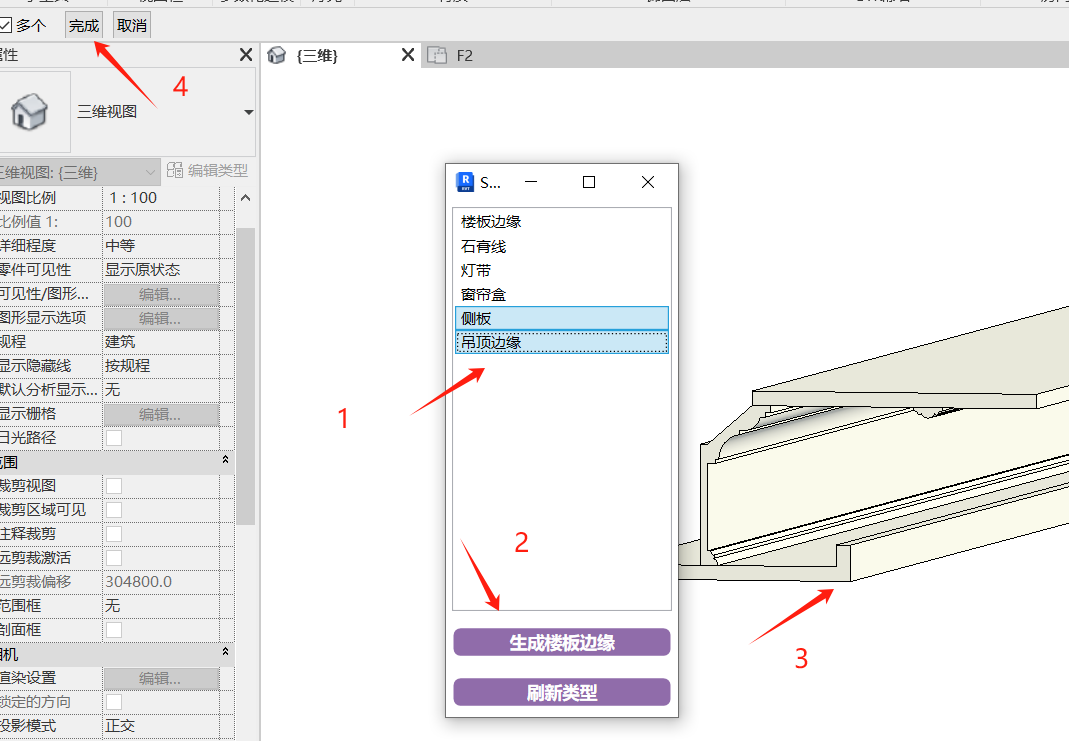
Generate multi-layer structure floor slab edges, primarily for multiple materials and multiple closed profiles.
A single slab edge type only supports one material, so when multiple materials are needed, multiple types must be assembled.
Hold Ctrl to add to selection, Shift to select all between first and last. After completing, click the function then click the edge line to place. Once picking is done, click Finish in the upper left corner.
Bilibili video demo → Multi-Layer Edge (opens new window)
# Wall Edge

Create recessed light trough structures for wall components. For curtain walls, only effective on flat walls, and requires at least one straight line in the wall profile.
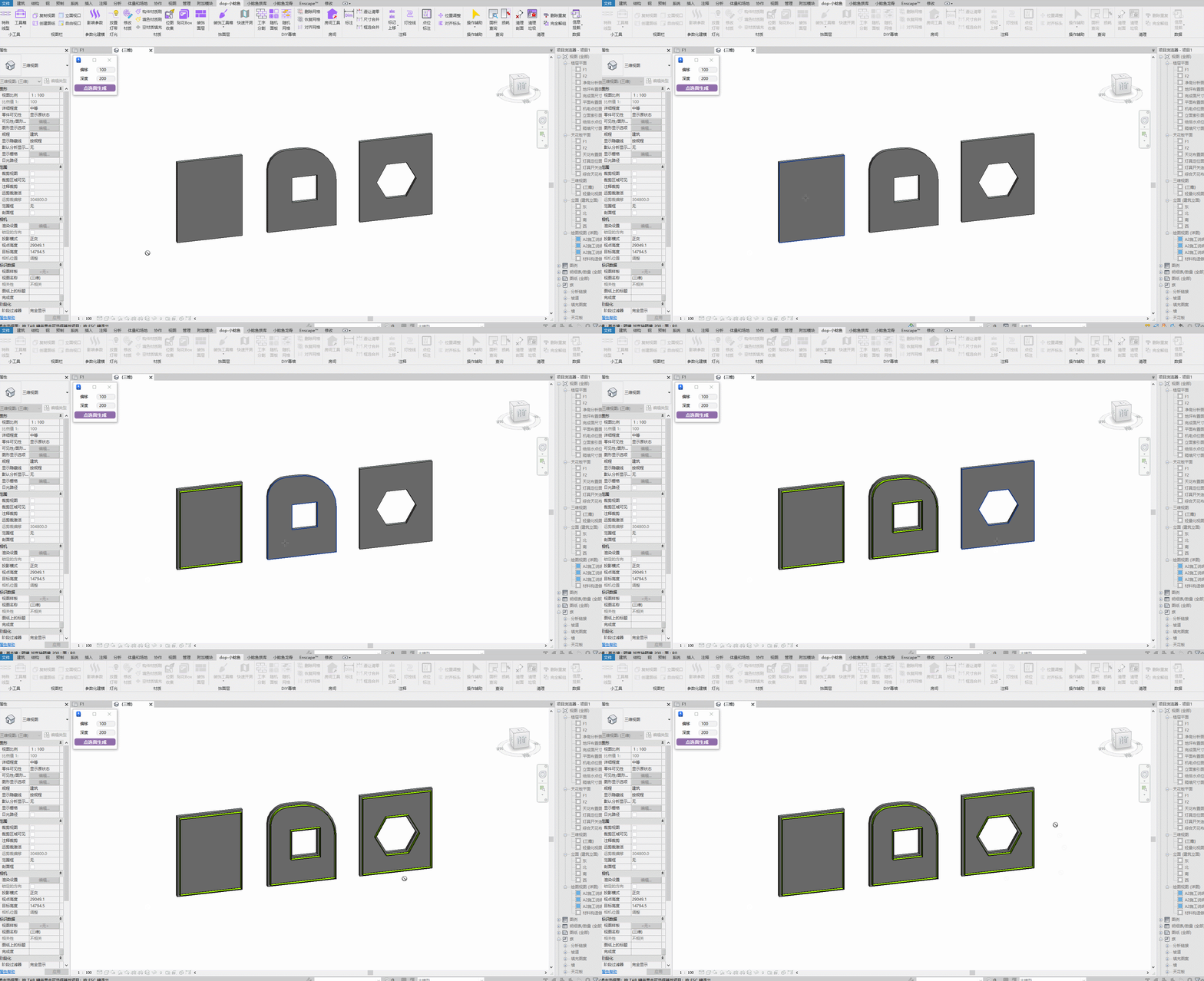
Bilibili video demo → Wall Edge (opens new window)
# Surface Veneer
Apply veneer effect to selected faces.
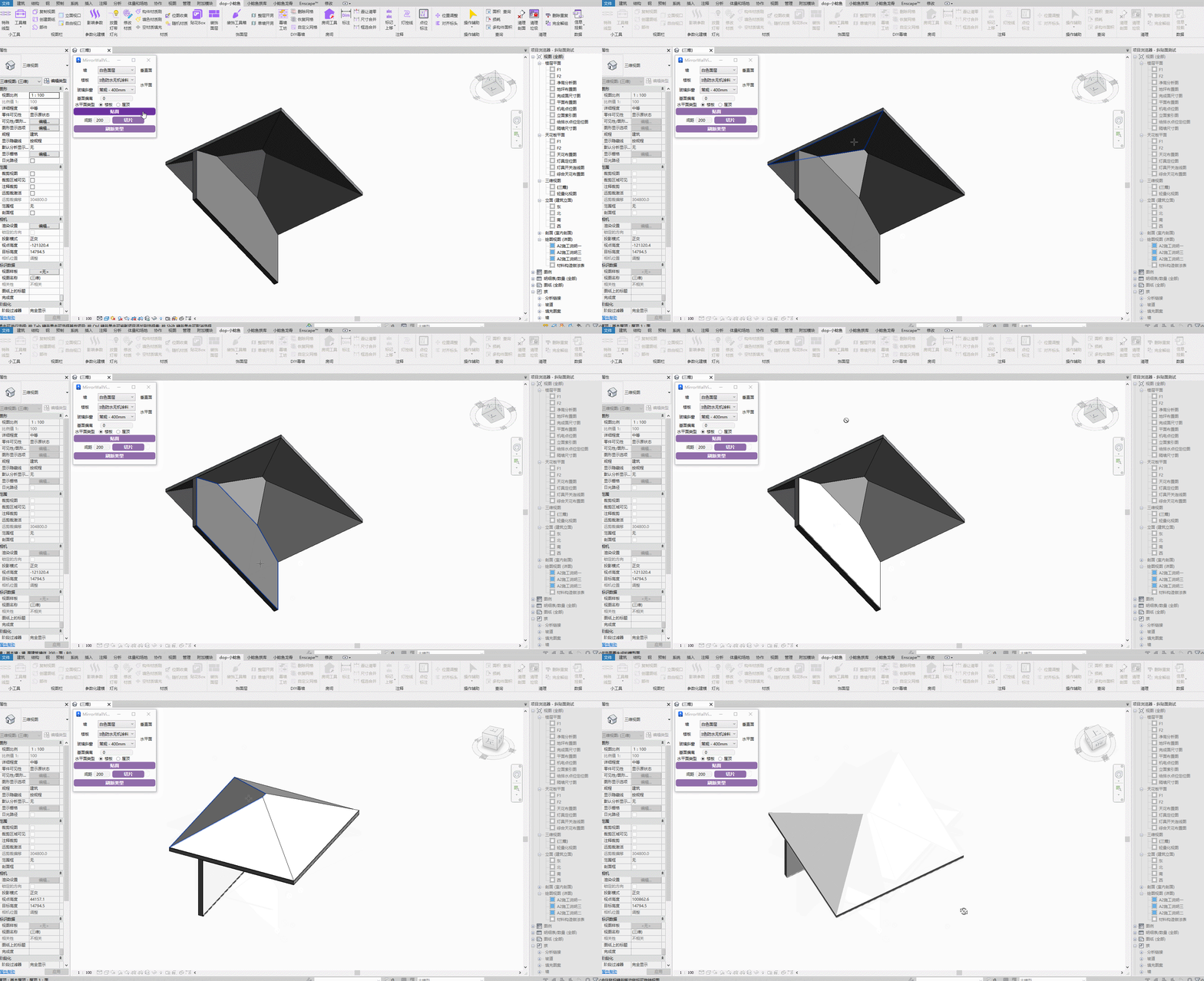
Bilibili video demo → Surface Veneer (opens new window)
If roof creation fails, manually create a random roof in the project, then delete it, and re-execute the plugin command. It should work normally after that.
Combining sloped glazing in roofs with curtain walls in walls can meet common tile joint requirements without needing a complete room.
# Whitewashing / Exposed Ceiling Spraying
Note: Before operating, use the Room Parameter Adjustment tool to adjust room heights to cover the height that needs whitewashing.
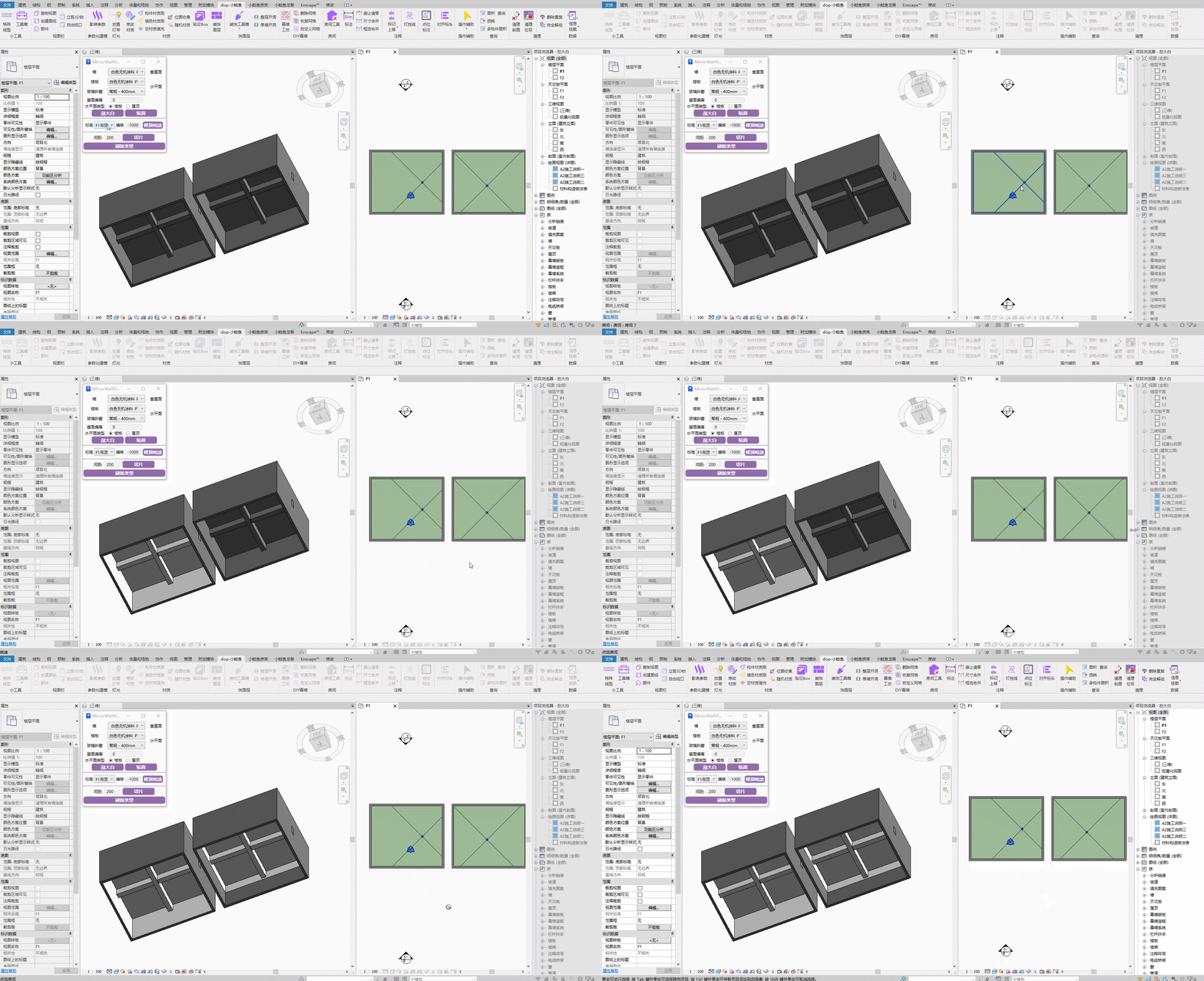
Exposed Ceiling Spraying:
Steps: Select corresponding horizontal/elevation elements → Set the spraying start level line → Click Generate.
Bilibili video demo → Whitewashing / Exposed Ceiling Spraying (opens new window)
# Slice
Slice solid objects.
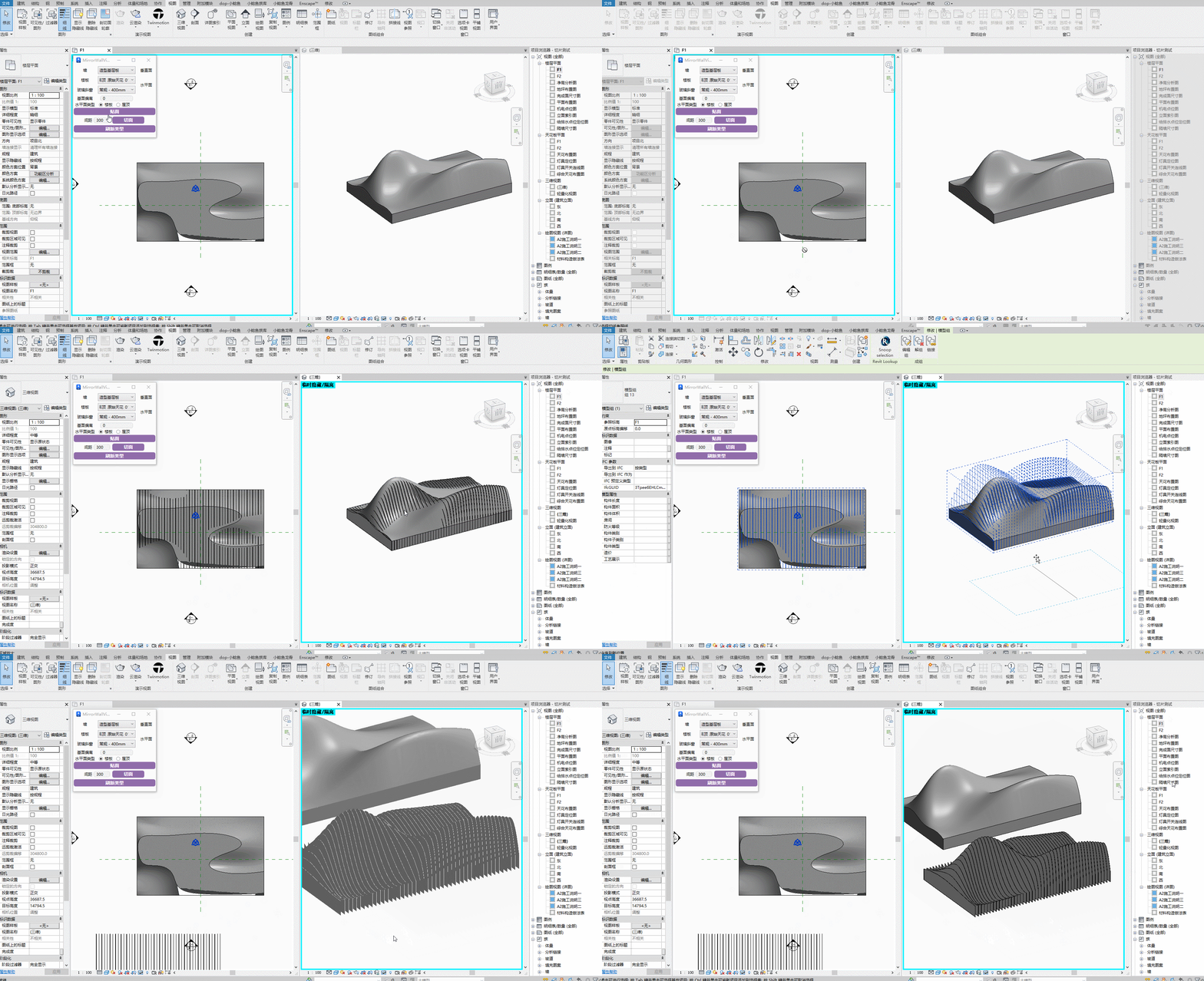
Steps: Select the main body → Select the drawn reference line.
Bilibili video demo → Slice (opens new window)
# Slab Merge
Merge selected connected slabs into a single unit, primarily for merging floor slab and threshold stone models.

Bilibili video demo → Slab Merge (opens new window)
Steps: Directly marquee-select the slabs to merge. Continuous operation supported.
# Full Level Opening

One-click opening treatment on finish layers at door and window locations.
Note: May fail to generate if the finish layer is too far from the base layer.
Bilibili video demo → Surface Veneer, Finish Opening (opens new window)
# Single Wall Opening
Quick opening by marquee selection (note: only marquee-select the wall segment that needs opening, not other wall segments). Compatible with common wall-based openings (such as doors and windows), including curtain wall types that can embed openings on finish layer walls.
# Curtain Wall Opening
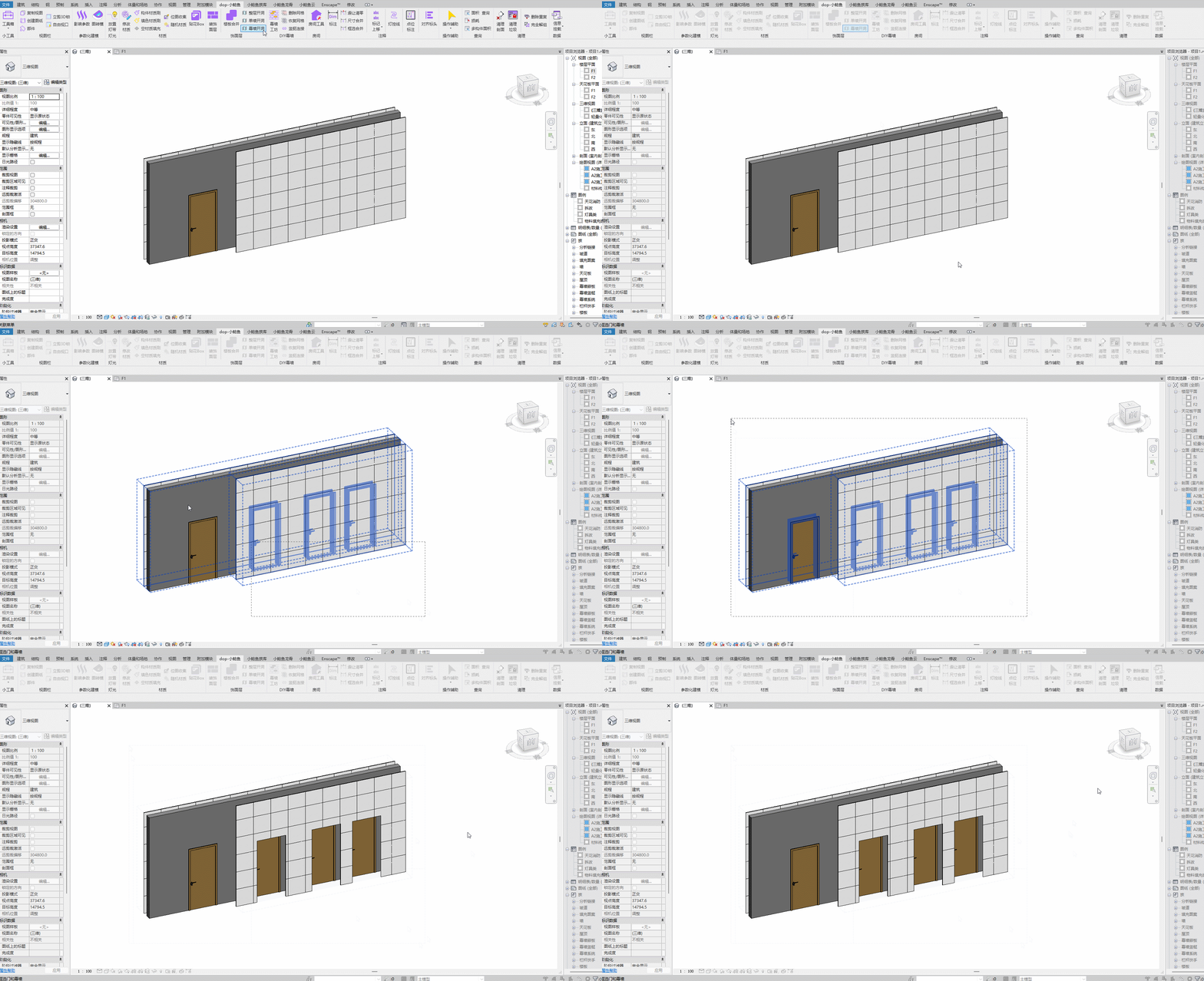
Primarily for creating openings on curtain wall type finish layers.
Bilibili video demo → Curtain Wall Opening (opens new window)