# Operation Assistant
# Operation Assistant

Helps quickly select needed components in the project.
Bilibili video demo → Selection Assistant (opens new window)
# Category Selection
Select only elements of the same category based on the picked element's category. Recommended to set a shortcut key.
Updated operation: You can marquee-select needed elements multiple times; press Esc to exit selection mode and get filtered elements.
# Name Selection
Select only elements with the same name based on the picked element's name. Recommended to set a shortcut key.
Updated operation: You can marquee-select needed elements multiple times; press Esc to exit selection mode and get filtered elements.
# Family Name Selection
Select only elements with the same family name based on the picked element's family name. Recommended to set a shortcut key. The family name here is the name of the family itself, not the family type name in the project.
Updated operation: You can marquee-select needed elements multiple times; press Esc to exit selection mode and get filtered elements.
Bilibili video demo → Quick Equal Distribution (opens new window)
# Same-Name Equal Distribution
Evenly distribute selected same-name components. Principle: keep first and last unchanged, distribute the middle evenly. Wall types are an exception — only distributed between parallel walls.
Commonly used for quickly evenly distributing wall spacing during floor plan drawing.
# Multi-Category Equal Distribution
Evenly distribute selected multi-category components. When linear elements (walls) are involved, distribution follows parallel wall spacing.
# Center Align
Center-align components.
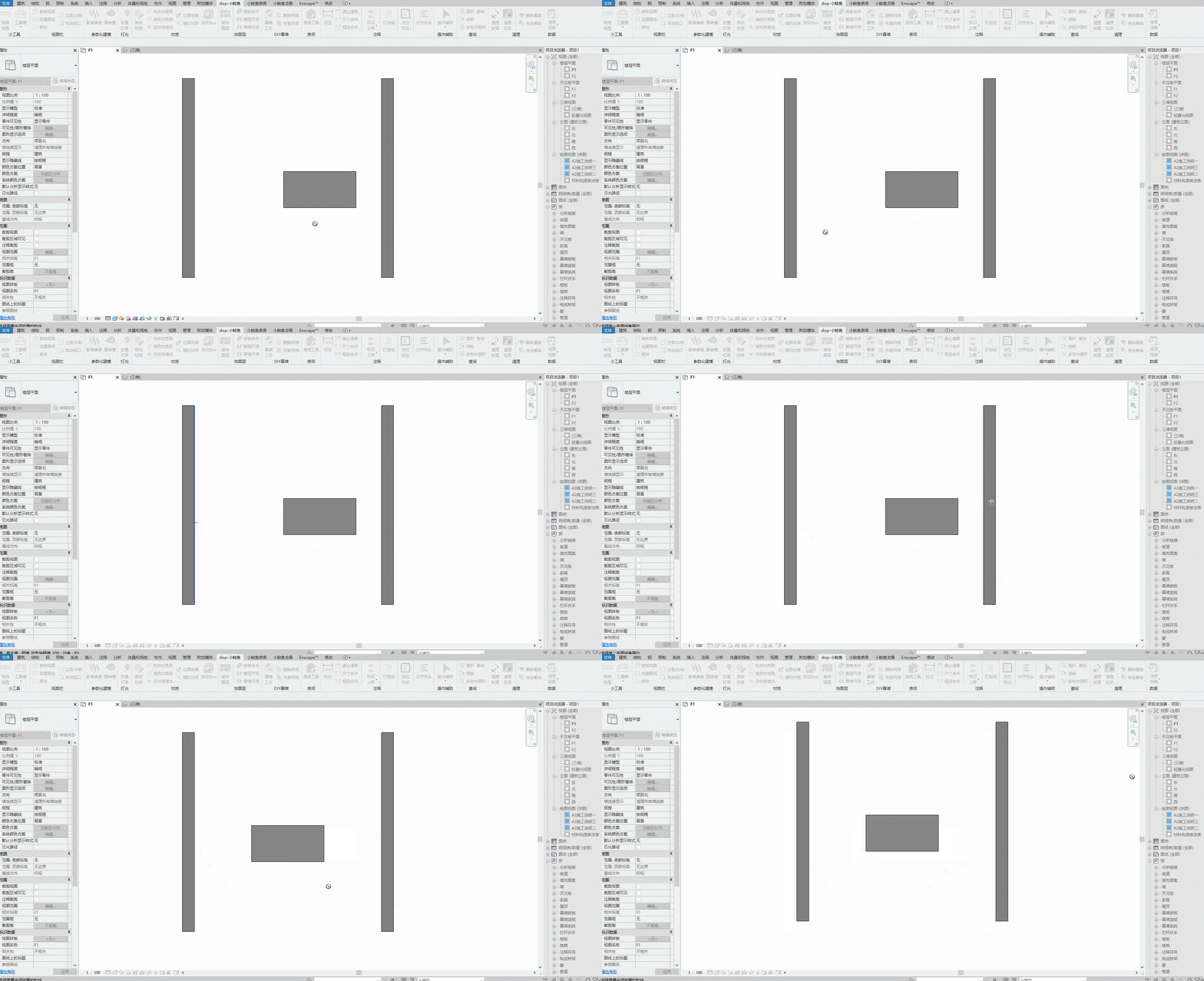
Steps: Select the main body to align → Select the first reference model edge → Select the second reference model edge.
If you can't select a component's geometric edge, press Esc once to select a parallel geometric face as reference.
Bilibili video demo → Center Align (opens new window)
# Wall Cut
Trim intersecting wall positions by marquee selection.
Note: Ensure no wall-based families (such as doors) are created on the wall. Recommended for use during the initial floor plan structural drawing phase.
Bilibili video demo → Wall Cut (opens new window)
# Parent View ID
Add the parent view ID to secondary-generated views such as elevation views and section views in the project.
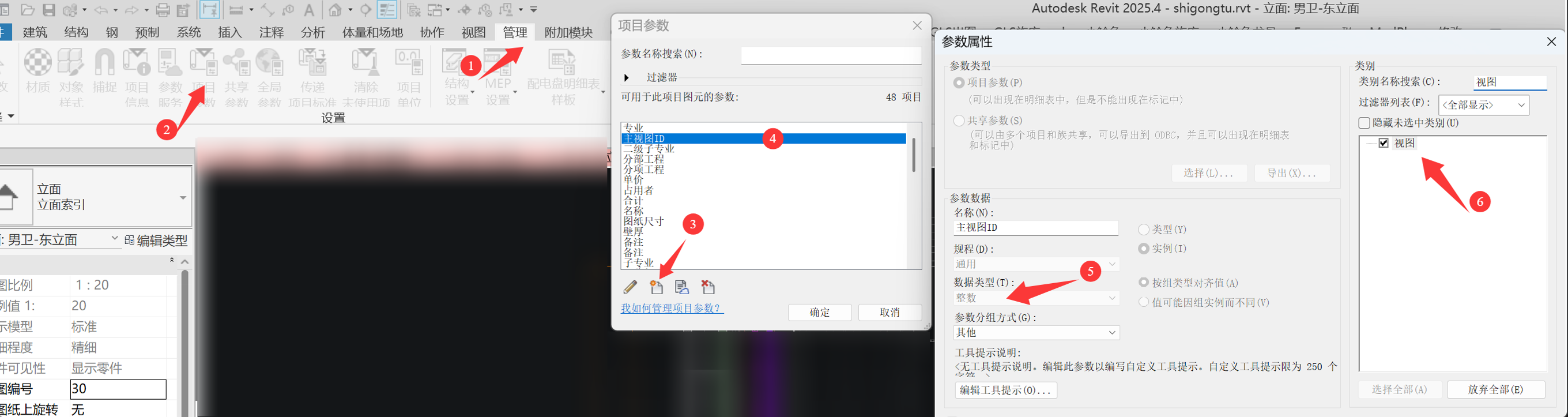
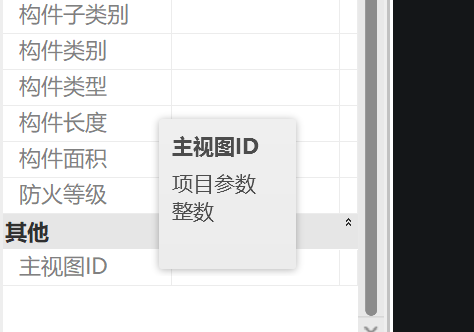
Add project parameter "Parent View ID" — parameter type: Integer, assigned to Views.
# View Jump
Quickly jump from elevation/section views to their parent view.
Recommended to set a shortcut key.
Bilibili video demo → Parent View ID / View Jump (opens new window)
← Annotation Query →